
Google Sheets Race Control
Send the entry list and incidents to a spreadsheet in your own Google Drive, for stewards to review.
Google Sheets Race Control is free on every plan. It's the simple alternative to the Stewards Room: the app writes to a spreadsheet, and your stewards review it there. It doesn't give you the shared web app. See the privacy policy for how your Google account is used.
1. Connect your Google account
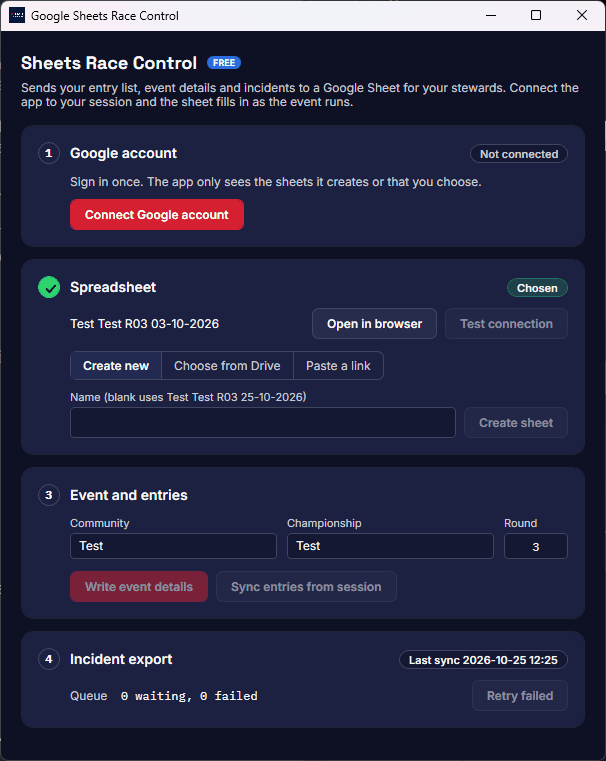
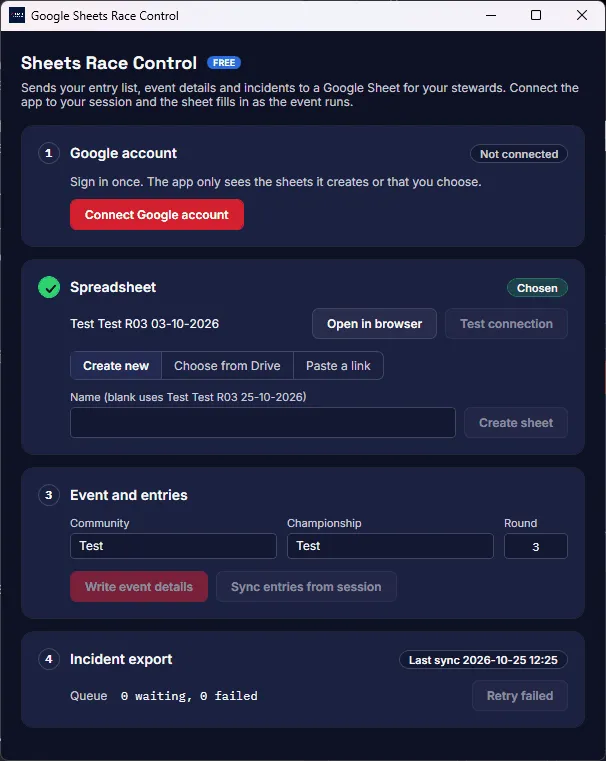
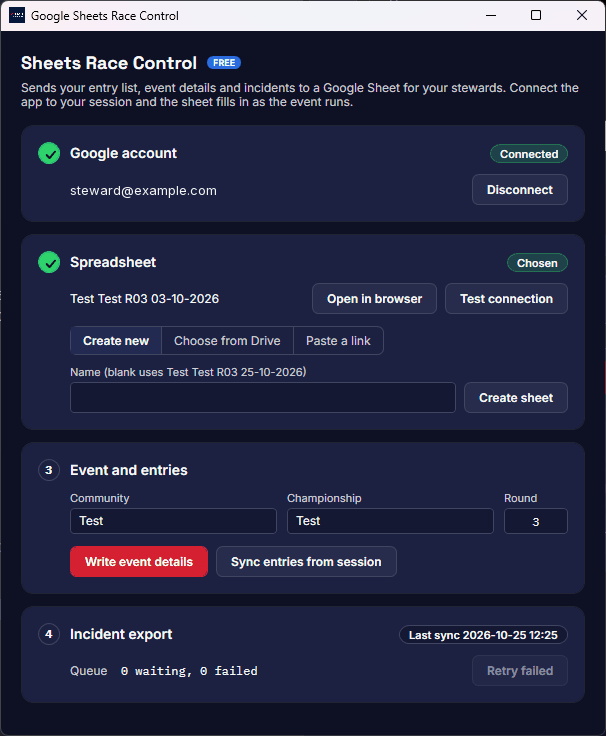
Connect the PC on the Home screen first: entries, event details and incidents all come from the live session. Then open Sheets Race Control, under Event tools. The window has four numbered steps, and each turns into a green tick once it's done. Click Connect Google account.
2. Allow access in your browser
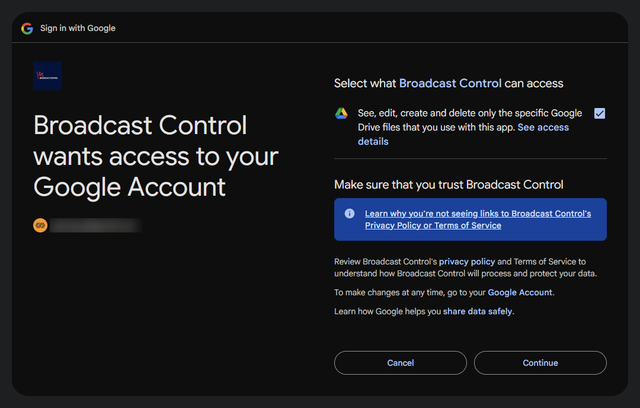
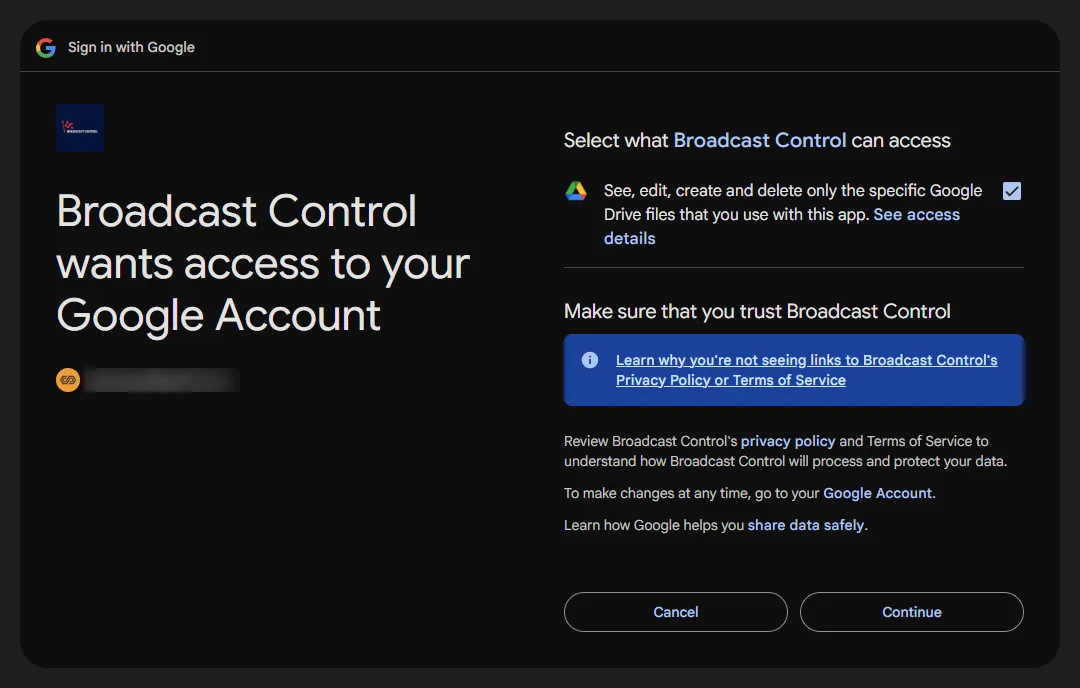
Your browser opens Google's sign-in; the app never asks for your Google password itself. Choose your account, tick the box that lets Broadcast Control see, edit, create and delete only the Google Drive files you use with it, and click Continue. It can't see anything else in your Drive.
Google leaves that box unticked. If you continue without ticking it, the app notices, undoes the sign-in and asks you to try again.
Back in the app, the Google account step shows Connected and your account.
3. Choose a spreadsheet
In the Spreadsheet step, pick one of these:
- Create new: type a name and click Create sheet, or leave it blank to use the suggested name from the community, championship, round and date. The app makes the sheet in your Google Drive with every tab, heading and dropdown.
- Choose from Drive: Google's own file picker opens, and the app is granted only the sheet you pick.
- Paste a link: paste a sheet's link, for example one someone has shared with you, and click Connect sheet. Your browser opens once to confirm which sheet you're granting.
The step shows a tick, Chosen and the sheet's name. Test connection checks it and adds anything missing, and Open in browser opens it.
4. Name the event
Fill in Community, Championship and Round. They name the event in the sheet, and they're the same fields as Race Control.
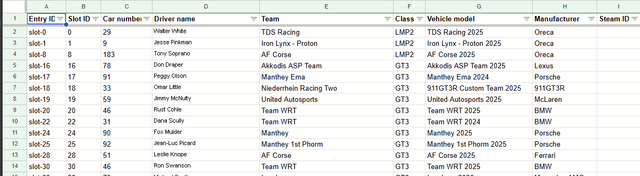
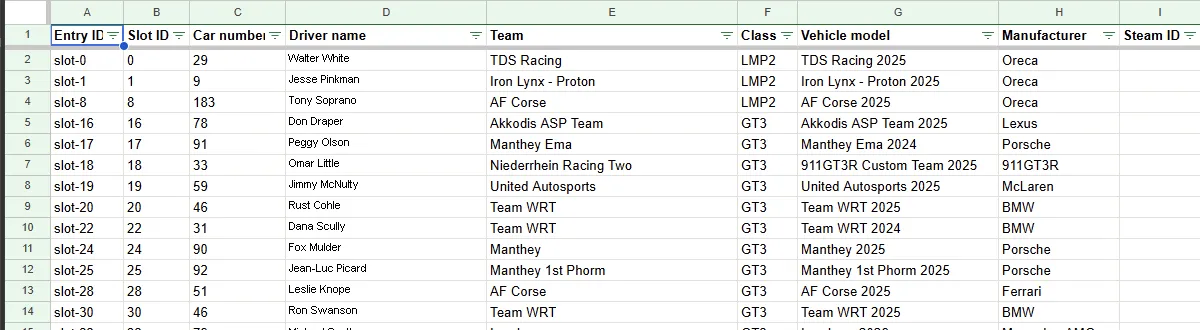
Once a spreadsheet is connected and the app is connected to the session, the Event and Entries tabs fill in by themselves, and entries update as cars join. Write event details and Sync entries from session send them again by hand. Each entry has its car number, driver, team, class, car and manufacturer.
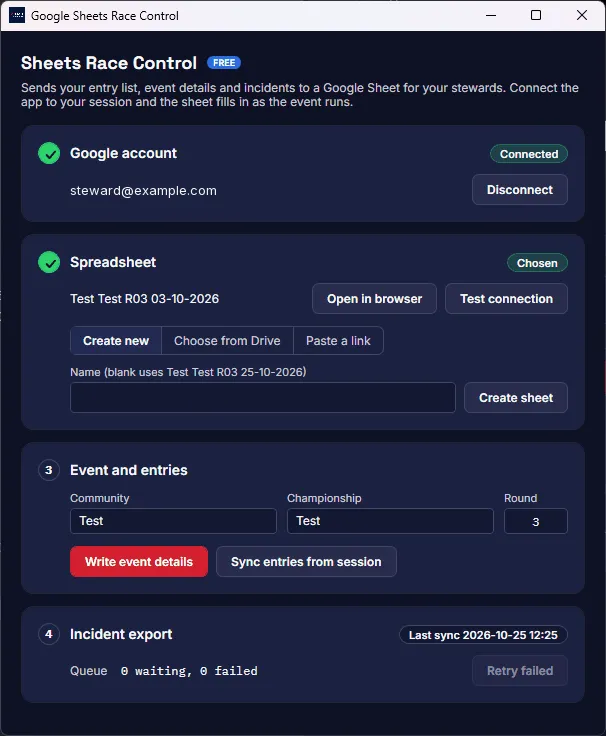
You can close the window now. The app keeps sending entries and incidents while it's connected to the session.
Incidents
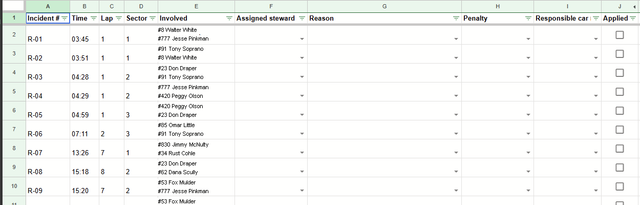
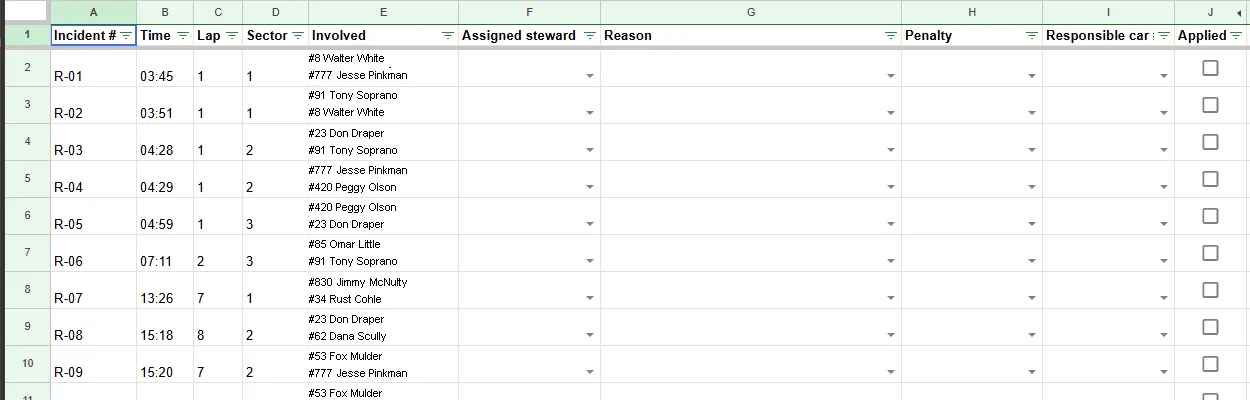
Every incident the app detects, and any you log by hand, is added as it happens: race incidents to the Race tab, qualifying and everything else to Quali, numbered R-01 and Q-01 upwards. Each has its time, lap, sector and the cars involved.
The assigned steward, reason, penalty, responsible car and Applied columns are for your stewards, and the app never overwrites them. Type your stewards' names in the Config tab to pick them in Assigned steward. Ticking Applied turns the row green, and GAME MESSAGE builds the line to paste into the game chat, for example Car #401 - WARNING - CAUSING A COLLISION - LAP 1.
Incident export in the app shows when the last sync went through, and how many incidents are waiting or failed. Retry failed exports sends the failed ones again.