
Overlays
What each part of the Broadcast Overlay shows, and the options for it.
The Broadcast Overlay is served by the app as an OBS browser source, separate from the game's own overlays. To add it, open Broadcast Overlay from the Home screen, copy the URL from Overlay Controls, and add it to OBS as a Browser Source at 1920×1080. Everything below is controlled from Overlay Controls or a Stream Deck. Each section of Overlay Controls folds away when you click its title, and can be dragged into a new order.
The look and behaviour are in Overlay Settings, the button at the top of Overlay Controls.
If an overlay stays blank after you update the app, refresh its browser source in OBS once.
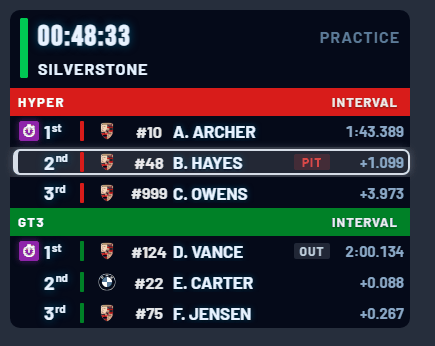
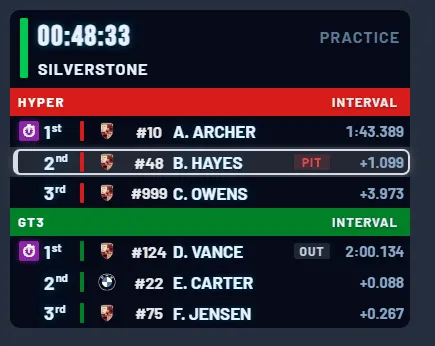
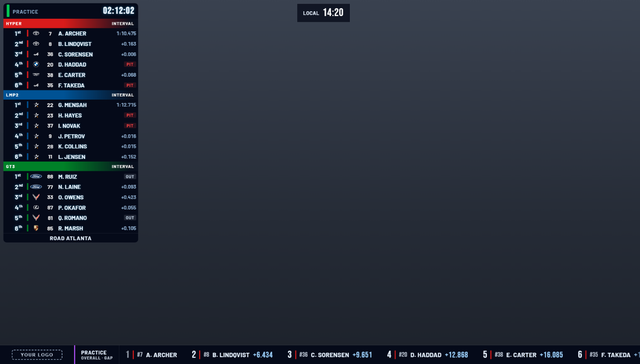
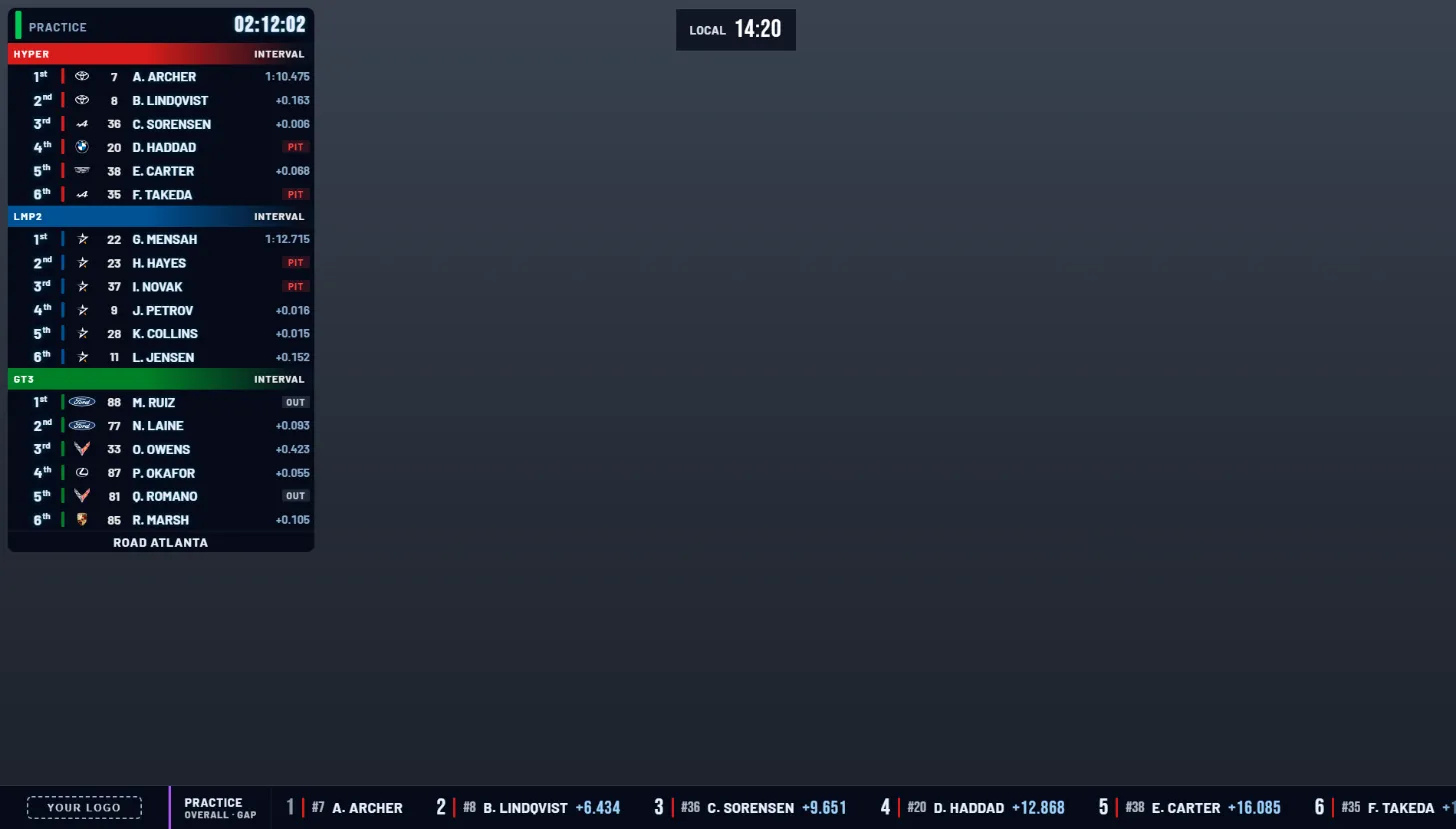
Standings Tower
- Class colours, manufacturer logos, and PIT, OUT, PEN, DQ and DNF badges. Finishers get a chequered flag, with gold, silver and bronze for the podium.
- Fields: Interval, Gap, Stops, Positions gained, Energy (with percentage) and Tyre, with optional auto-cycling. In qualifying and practice, class leaders show their best lap.
- Class filter: Mixed, Multi-class, or a single class, with a maximum number of rows. Lapped cars show +1 LAP and so on in class mode.
- Names as surname, team, or initial and surname (the default). Hide Numbers hides car numbers across every overlay.
- A car in the pits for more than five minutes during a race is shown as DNF, and cleared if it returns.
- Fastest lap banner: slides in at the top centre when a driver sets a new class-best lap, in qualifying or the race.
- Hide Tower hides the tower while the other panels stay up; it reads Show Tower while the tower is hidden.
- Your settings are remembered between sessions.
In Overlay Settings → Tower you can also choose:
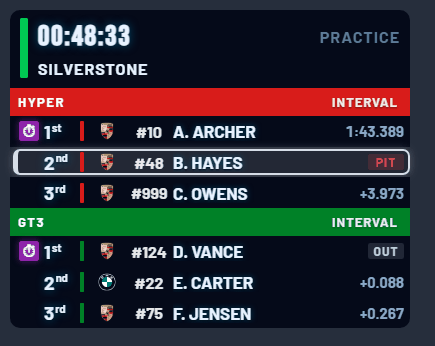
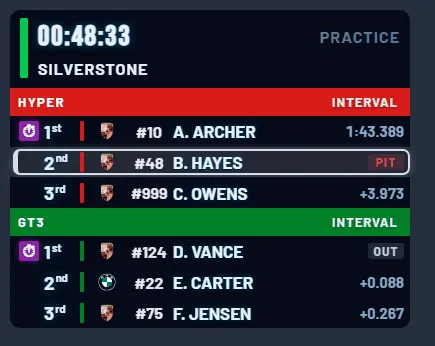
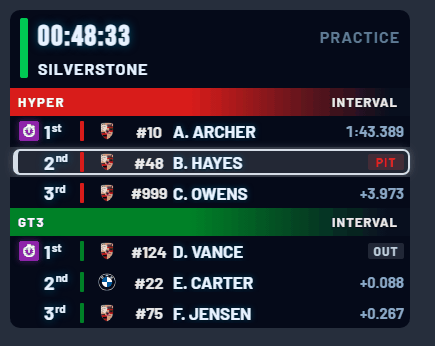
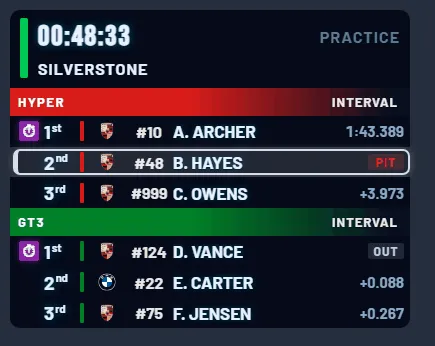
- Header style: the session header above the tower. Classic, the clock and session with the circuit underneath, is on every plan. The Premium plan adds five more, each with the race lap: Classic with lap, Slim, Split, Compact and Broadcast.
- Class headers: how each class is labelled above its cars: Line, Badge, Band or Fade.
- Compact tower: PIT and OUT show in place of the gap until the car is back on track. Turn it off to give them their own column, which keeps the gap showing and makes the tower a little wider.
Local time and weather
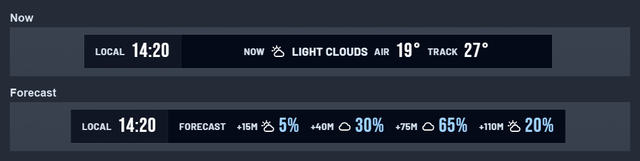
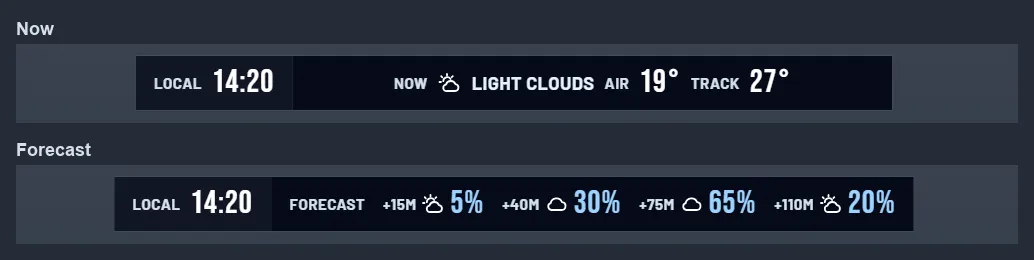
One info bar at the top of the screen, on every plan. You can move it to the bottom in Overlay Settings → Weather.
- Local time: the in-game time of day, while the tower is up. It follows the session's time scale. Hide Clock hides it.
- Conditions: adds the weather, air and track temperature, how wet the track is when it's wet, and the next change in the forecast with its chance of rain.
- Forecast: adds the rest of the session's forecast, each change with its sky, temperature and chance of rain, in your temperature units. Conditions and Forecast can be on together.


Weather layouts Premium plan
Choose where the weather sits in Overlay Settings → Weather: a rotating info bar, a tab beside the tower header (still or rotating), or a strip at the top or bottom of the tower. The rotating ones turn between the conditions, the temperatures and the forecast, and the buttons in Overlay Controls are then named Rotation and Forecast. Each layout can warn when rain becomes likely, for example "Rain likely in 25 min".




Information panels
- Driver Info: manufacturer, car number, tyre, energy, driver, position, best and last lap, and class.
- Qualifying Info: a live lap timer with sector deltas to personal best, coloured like Live Timing. It holds the lap time at the line for a few seconds, and shows TRACK LIMITS, OUT LAP, PITS or GARAGE when relevant.
- 1v1 Battle: the focused car against the closest car ahead or behind: tyres, energy, laps and gap.
- Battle: up to six same-class cars within two seconds of each other, under "Battle for P…". Shares a slot with Qualifying Info.
- Track Map: the circuit with class-coloured dots, updated every 150ms from shared memory, or every second without it. The car causing a yellow is a gold dot.
Onboard HUD
The Onboard button in Overlay Controls shows a HUD on the focused car: speed, gear, revs, throttle and brake, and energy. Dash and Cockpit beside it switch the camera straight away. In qualifying the onboard view shows Qualifying Info instead of Driver Info.
Results, grid and standings
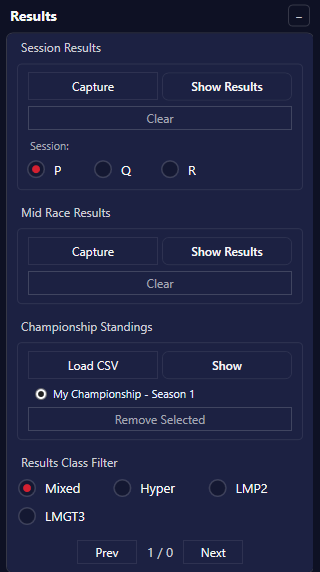
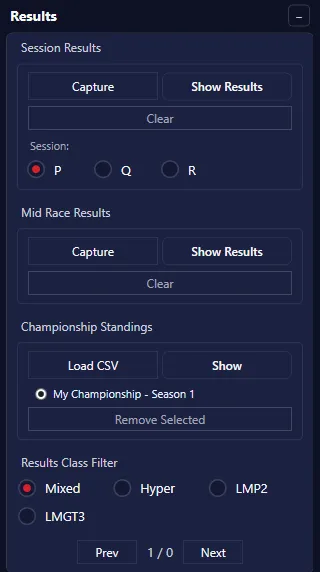
- Starting grid: two cars per slide with qualifying times and car images, cycling automatically.
- Session results: the classification captured at the end of the session, paged. Cars that didn't finish are faded.
- Mid-race results: capture, show and clear a live classification during the race.
- Championship standings: imported from a CSV, with points and medals for the top three. See below.
Event card styles Premium plan
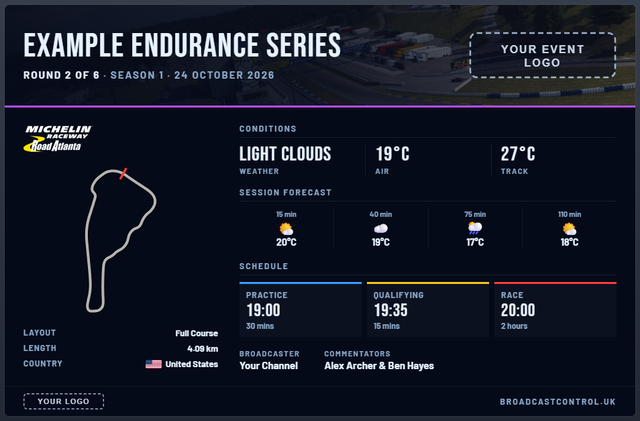
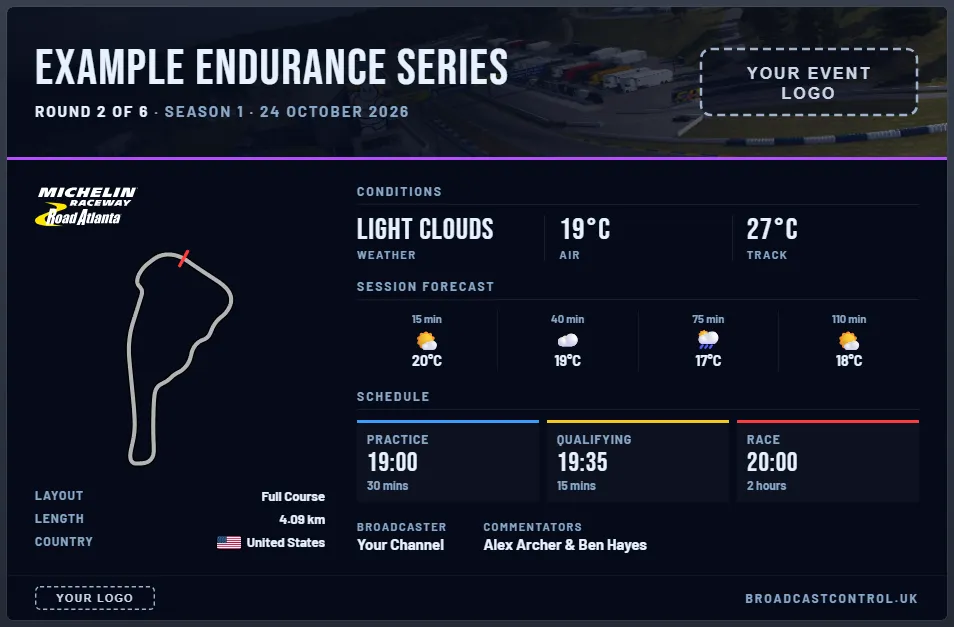
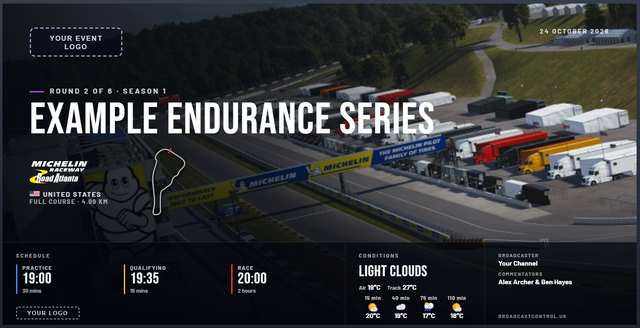
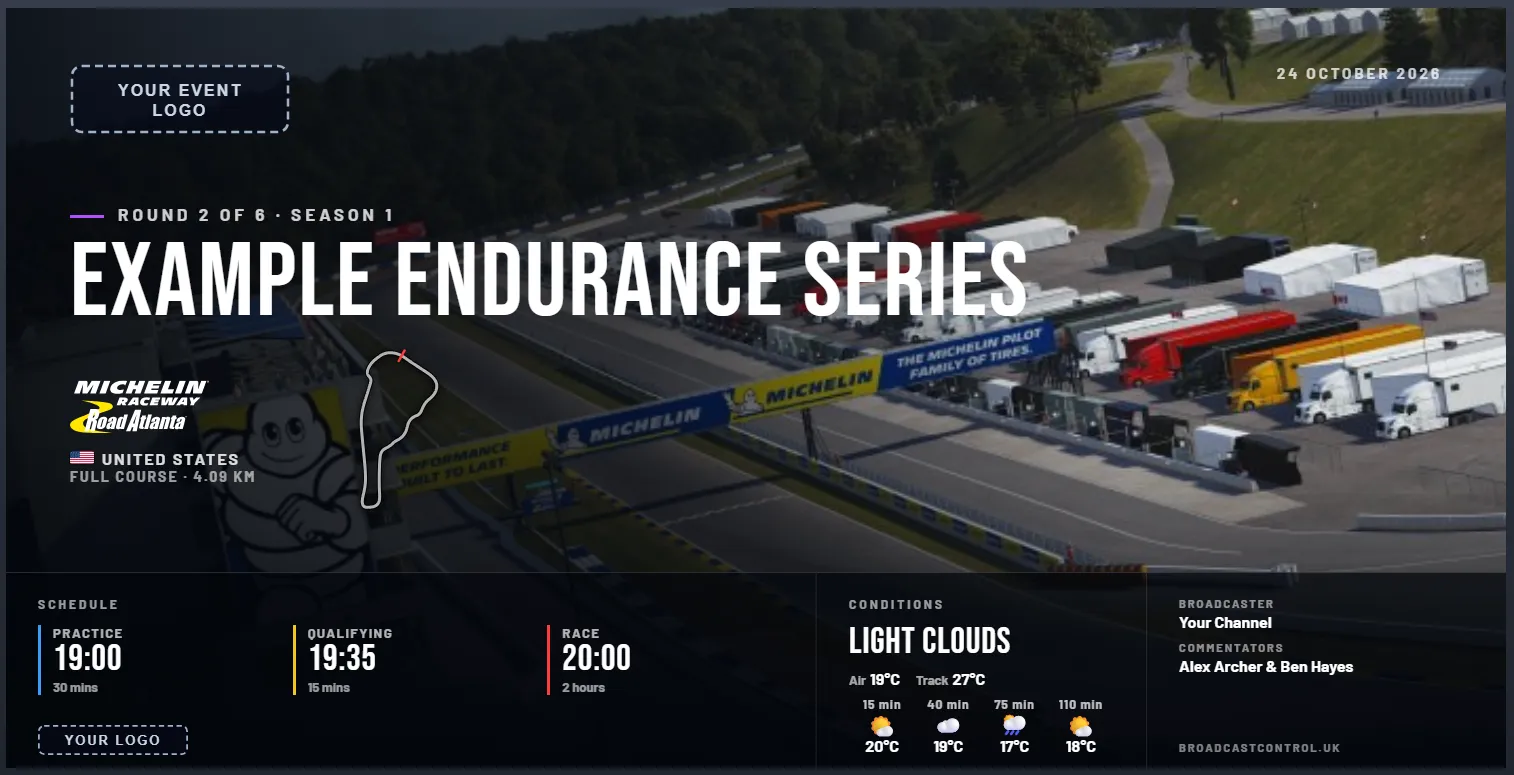
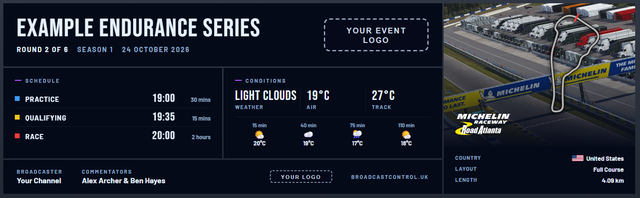
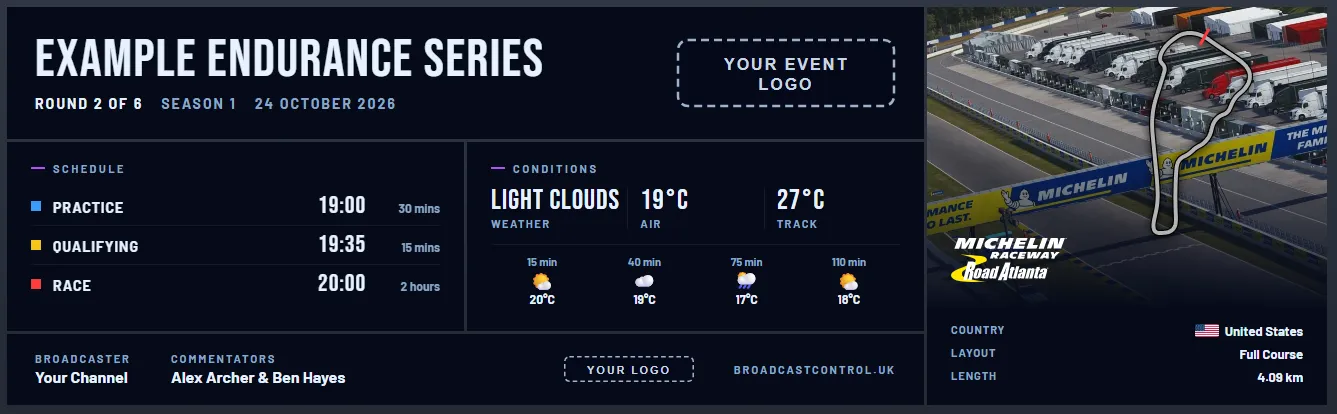
Three more looks for the event card: Refined, Cinematic and Modular, each with a picture of the circuit taken from Le Mans Ultimate on your PC. Pick one in Overlay Settings → Event card. On every plan you can choose which sections of the card show and whether it fades in.
Championship standings CSV
Start the file with Community, Championship, Season and Round lines, with the label in the first column and the value in the second. They're shown under the title, and blank ones are left out.
- Add a Team column (anywhere) to show team names under each driver; without it, the car is shown.
- Add a Manufacturer column to choose each car's badge, and Vehicle can then be left blank. Without it, the badge comes from Vehicle, which must include the make.
- Manufacturer names: ADESS, Alpine, Aston Martin, BMW, Cadillac, Corvette, Duqueine, Ferrari, Ford, Genesis, Ginetta, Glickenhaus, Isotta Fraschini, Lamborghini, Lexus, Ligier, McLaren, Mercedes-AMG, Oreca, Peugeot, Porsche, Toyota, Vanwall.
- Several championships and per-class filtering are supported.
Broadcast graphics Premium plan
Graphics that sum up the race so far, from the Broadcast Graphics card in Overlay Controls or a Stream Deck key. Press a button to show one: it's green while it's on air, and stays until you press it again. A press that can't be shown, for example during a replay, flashes red.
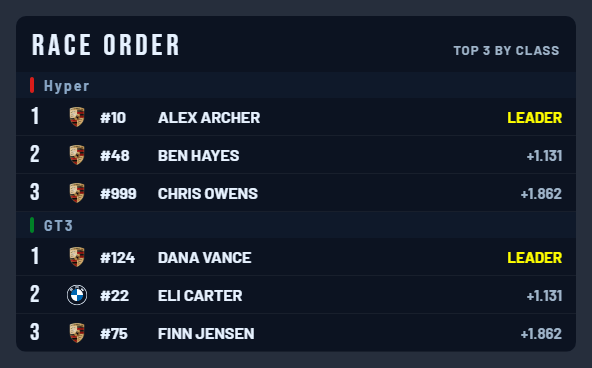
- Race Order: the top three in each class, with their gaps and car pictures.
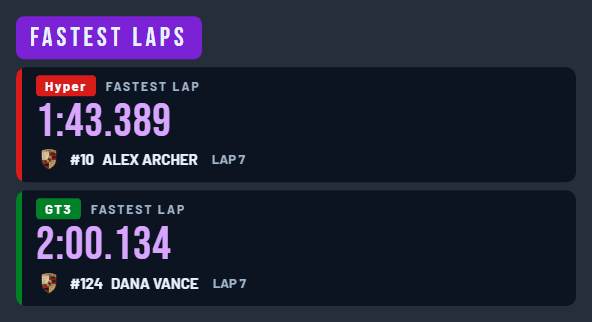
- Fastest Laps: the fastest lap in each class, with the car, driver and the lap it was set on.
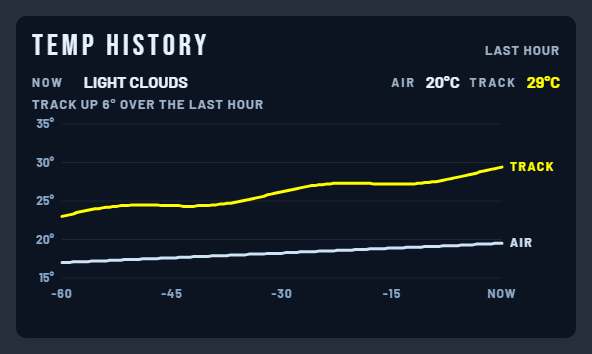
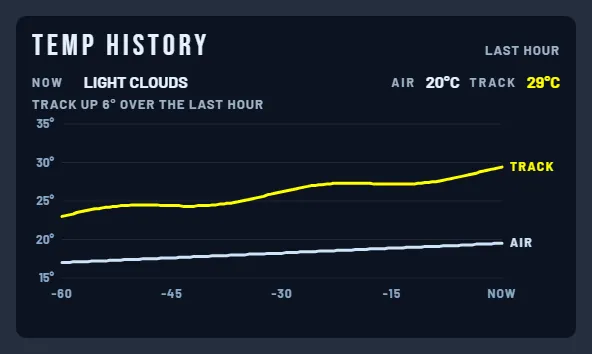
- Temp History: air and track temperature over the last hour, with the trend. It needs five minutes of the session first.
- Last 4 Laps: the car in shot and its closest rival in class, lap by lap over their last four laps, and how much the gap closed or grew. It follows the camera.
- Class Leaders, Race Leader and Winners: banners.
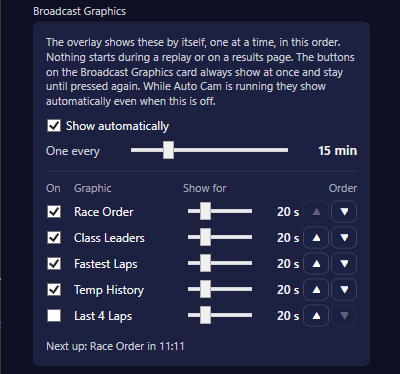
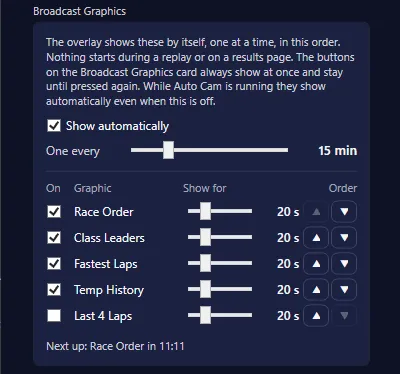
To put them on air without pressing anything, tick Show automatically in Overlay Settings → Broadcast Graphics and choose how often (for example one every 15 minutes). They show one at a time, in the order you set, each for as long as you set. Nothing starts during a replay or on a results page. While Auto Cam is running they show automatically even when this is off.
Classification ticker Premium plan
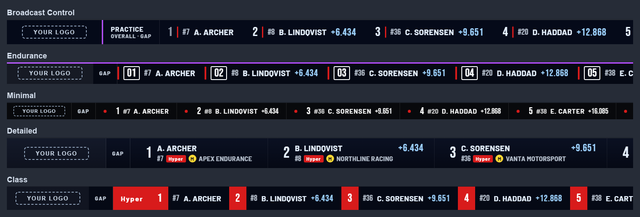
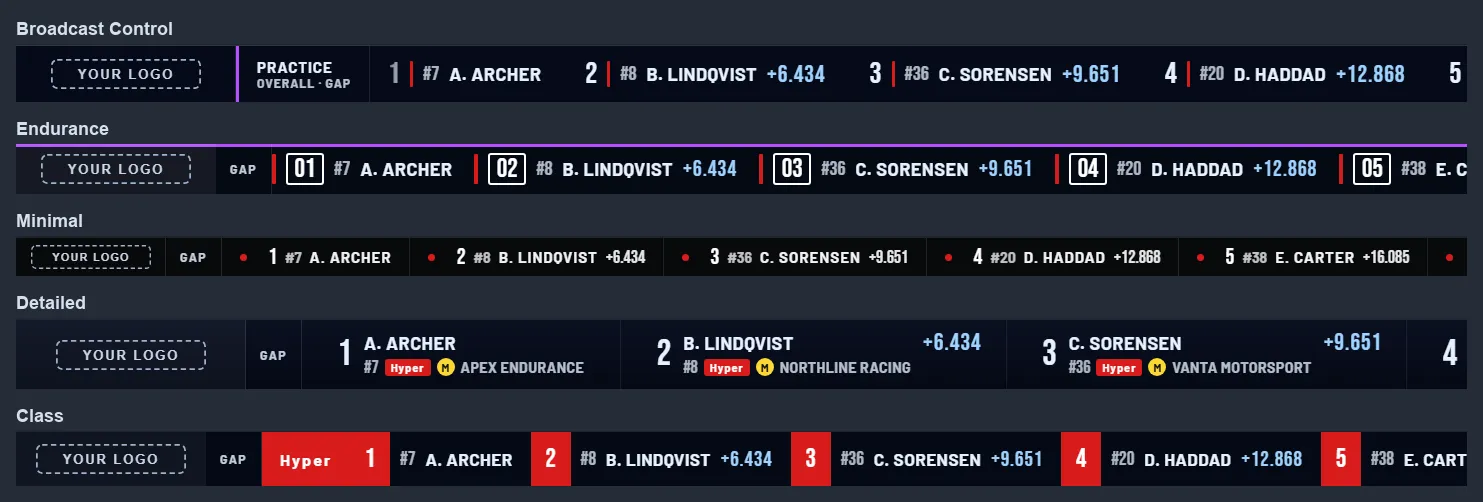
The running order scrolls along the bottom of the screen, with your sponsor. Show it, pause it, and pick the order (overall, by class, or one class per pass) and the timing (gap, interval or best lap) in Overlay Controls or with Stream Deck keys. While it shows, the tower drops rows to stay above it.
Choose its style, size and speed, and what each car shows, in Overlay Settings → Classification Ticker. There are five styles: Broadcast Control, Endurance, Minimal, Detailed and Class.
Dynamic PiP Premium plan
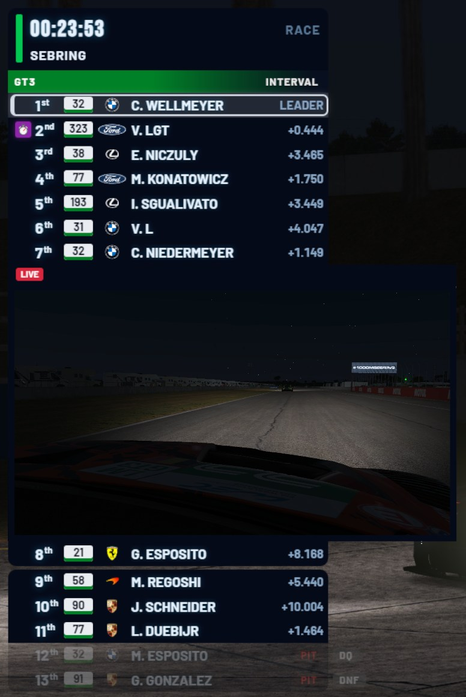
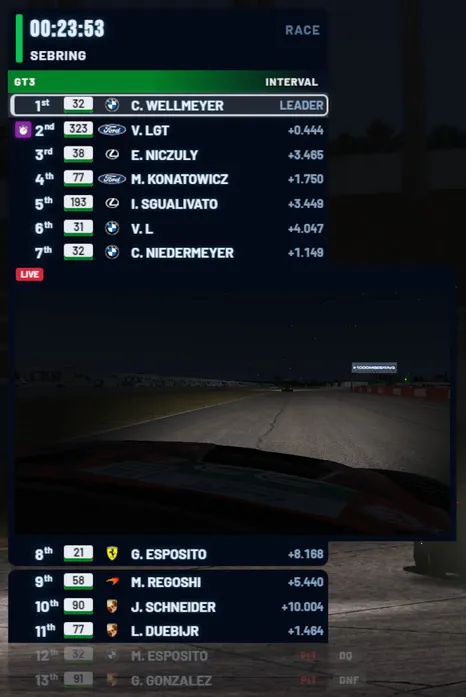
Dynamic PiP puts the second PC's picture inside the timing tower. The tower opens a gap under the car that PC is watching, shows the picture there under a LIVE strip, and the gap moves with the car as it gains or loses places.
You need:
- OBS 28 or later on the PC running the app, with its WebSocket server turned on (in OBS: Tools → WebSocket Server Settings).
- The second PC's picture already in OBS as a source, for example from a capture card.
- The second PC connected in the app (two-PC setup), and in the same session as the first.
Set it up in Overlay Settings → Dynamic PiP: connect to OBS, pick the second PC's source and the tower's browser source, then let the app add its own BC Dynamic PiP scene under the tower. It doesn't change any of your other sources. Then use Show PiP beside Hide Tower in the control window, or the Stream Deck, to show it. It's off each time the app starts.
While the picture shows, the tower keeps that car on screen with two cars ahead and two behind, and switches to the car's class until you hide it. Change car on the second PC and the picture moves to that car's row.
Replays
During a replay the overlay changes by itself: a yellow flag or slow car shows Driver Info, a contact shows the 1v1 graphic, and a manual replay shows a REPLAY banner.

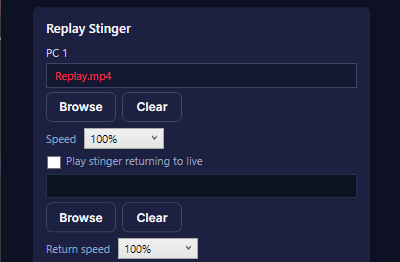
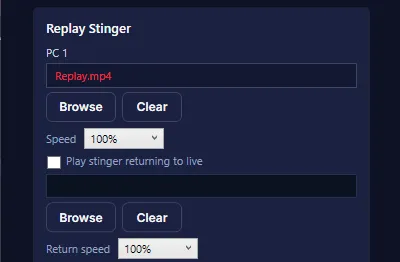
Replay stinger: choose an MP4 or WebM file in Overlay Settings and it plays full screen each time the broadcast goes into a replay. Two to four seconds works well. MOV files don't play in browser sources. You can set its speed, and add a second stinger for returning to live.
Full Course Yellow and Safety Car
The GREEN, FCY and SAFETY CAR buttons in the Live Timing header, or the Stream Deck keys, turn the overlay header into a yellow FULL COURSE YELLOW or SAFETY CAR bar. They tell viewers what the league is running; they don't control the game.
- FCY: press once. It stays until you press GREEN.
- SAFETY CAR: each press moves on: SAFETY CAR, then SAFETY CAR ENDING, then green.
- GREEN: shows a green flag bar for five seconds, then the normal header.
If the app restarts during an FCY or Safety Car, it comes back by itself for up to 20 minutes.
Penalties
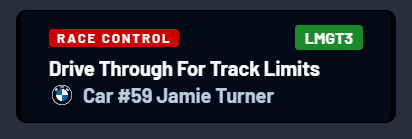
When the game gives a penalty, the Race Control banner shows it on air: the penalty, its reason, and the car with its class. Reasons always show in English.
Your league's look Premium plan
With the Premium plan you can use theme presets and custom colours, move and resize the overlay elements in the layout editor, and add your own logos in Overlay Settings. On the free plan the overlay uses the Default theme.
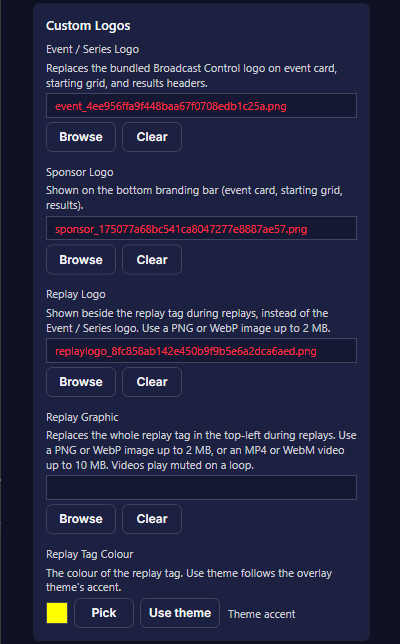
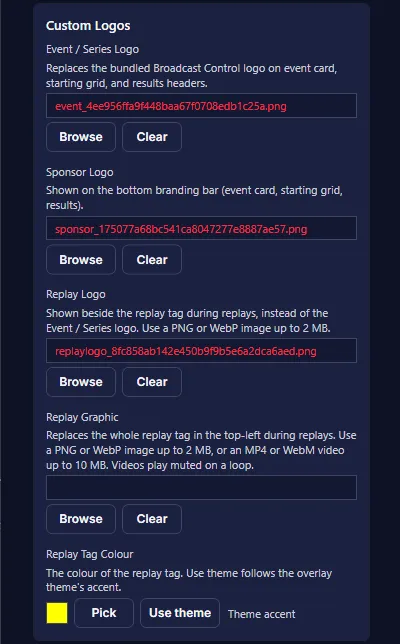
Your logos, in Overlay Settings → Custom Logos:
- Event or series logo: replaces the Broadcast Control logo on the event card and the results.
- Sponsor logo: fills the left slot of the branding bar on the same screens.
- Replay logo: shown beside the replay tag during replays, instead of the event or series logo.
- Replay graphic: replaces the whole replay tag. A PNG or WebP image up to 2 MB, or an MP4 or WebM video up to 10 MB, played muted on a loop.
- Replay tag colour: your own colour, or the theme's accent.
Logos can be PNG, SVG, JPG or WebP. SVG scales best; use a transparent background, as light-on-dark logos work best. The event logo fits within 260×110 pixels (wide logos, around 2.5:1, show largest) and the sponsor logo is up to 28 pixels tall. The files are copied into the app's data folder, so you can move the originals afterwards, and Clear puts the default back.
Tower branding
In Overlay Settings → Tower branding:
- League logo above the clock: uses your event or series logo, in three sizes, left, centre or right, on a panel or with no background.
- Sponsors under the tower: add as many PNG, WebP or JPG images as you like and they show one at a time, in your order, for 5 seconds to 2 minutes each. You can add a break after each round, pick the transition, and pause on a sponsor. Every OBS source shows the same sponsor at the same time.
Both move, scale and hide with the clock and the tower.
Car numbers
On the free plan the car number is text after the manufacturer logo. With the Premium plan, choose a number box in Overlay Settings → Tower: a light box, a light box with a class colour line or strip, or a box in the class colour. Every other graphic with a car number uses the same style. With a class colour style you can also hide the class bar beside the number.
The Premium plan also adds further overlays, extra standings tower features and advanced overlay features; the User Guide installed with the app covers them.
If the subscription ends, the app goes back to the free features and the default look.
Livery Hub
Your championship's liveries on the starting grid, results, driver card and battle panels: see Livery Hub.