
Live timing and incidents
What the timing grid shows, and how incidents are detected and logged.
The timing grid
Live Timing shows every car on track. The header carries the track, weather and air temperature, track condition and temperature, rain percentage, and the forecast.
Columns: position and class position, car number, driver, team, class badge, manufacturer logo, tyre compound, best lap, last lap, S1/S2/S3, gap to leader, interval to the car ahead, laps, position change, energy, average energy over 3 and 5 laps, status, penalties and track limits. Use the arrows above the grid to switch between the Qualifying, Race and Pits views; the columns change with the view. Right-click a column header to add or hide columns.
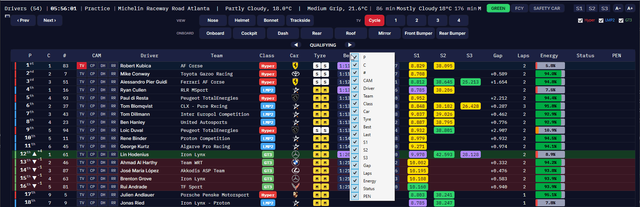
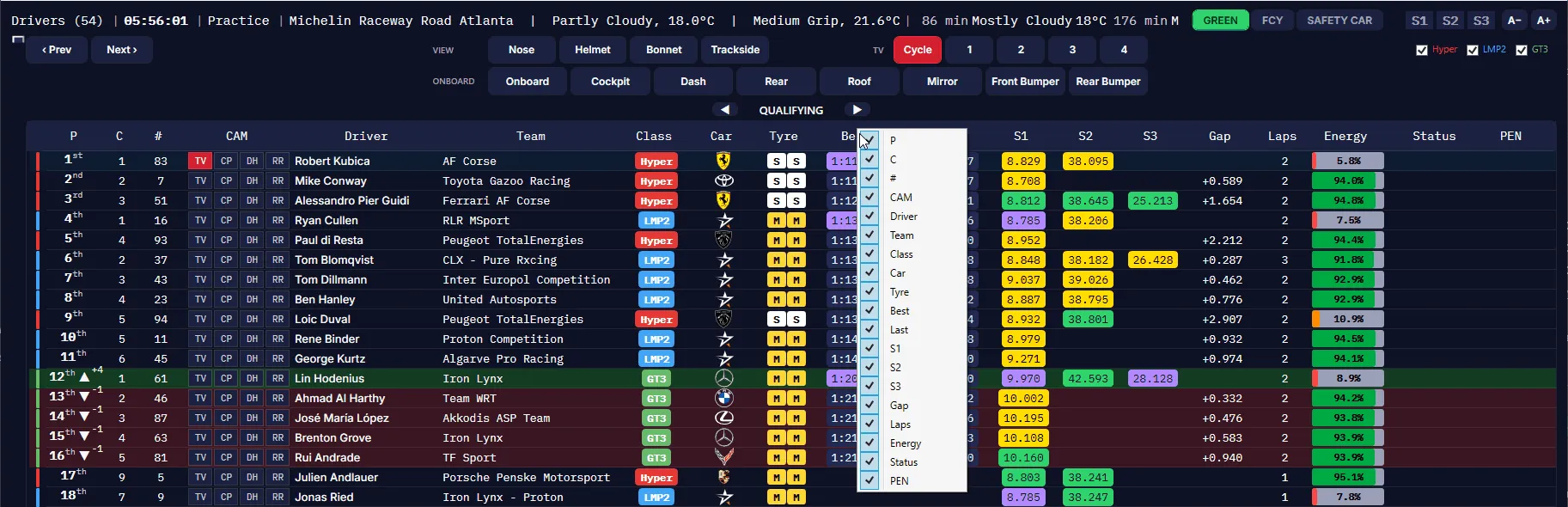
- Sort by clicking a column header. Click Class to group the grid by class, fastest class first, and again to go back.
- Change the camera by clicking a row. Each row also has TV, CP (cockpit), DH (dash) and RR (rear) buttons that focus that car and switch camera in one click.
- Lap history: right-click a row for every completed lap: sectors, lap time, deltas to personal and class best, energy used, pit stop times, and which tyres were changed.
Colours and highlights
| What | Meaning |
|---|---|
| Purple sector | Class best (moves when someone beats it) |
| Green sector | Personal best |
| Yellow sector | Slower than personal best |
| Red interval | Door-to-door: within 0.3s |
| Amber interval | Close: within 0.5s |
| ▲ ▼ ▬ on the interval | Closing, opening or stable, updated each lap |
| Whole row pulsing yellow | The car causing a yellow; flashes green when it clears |
Sector times hold briefly after each lap, then clear. They're blank while a car is in the pits, and a car over track limits shows LIMIT with its sectors cleared.
Tyres and energy
- Tyres: H (Hard, red), M (Medium, yellow), S (Soft, white), W (Wet, blue), I (Inter, green). Front and rear come from the game's live feed. When a car runs different tyres left and right, a 2×2 grid shows each corner; that needs shared memory (the game PC, or the SM Bridge).
- Energy: a bar and percentage for remaining virtual energy or fuel, updated at the line. Avg E 3L and Avg E 5L are the average use per lap over 3 and 5 laps, reset at each pit entry.
- Pit stops: stop and lane times after a stop, then "X Laps" five laps later to show how long ago it was.
Penalties and track limits
- Penalties show the game's own type: DT (drive-through), SG with its hold time (for example "SG 10s"), TIME or PEN. Hover for the reason. Reasons come from the game's incident stream, which is filled in hosted and online sessions; in single-player a penalty may have no reason.
- Track limits (TL) shows each driver's points against the session's limit (for example "0.75 / 4"), with a bar from green to red. It uses the game's own rulings, so it covers the whole field, even while spectating.
- It stays blank until the app has the session's limit and the game has made its first ruling for anyone.
- Points from before you connected aren't counted, so mid-race it's accurate from that point on.
- The game resets a car to 0 when it gives a penalty, so the number is progress to the next one.
Flag state
GREEN, FCY and SAFETY CAR in the Live Timing header set what the overlay shows; they don't control the game. See Overlays.
Incident detection
The Broadcast Control window lists incidents as they're detected, each tinted by type. Unviewed incidents have a blue left edge. Filter by type with the tick boxes, and by session with the tabs.
| Type | Tint | How it's detected |
|---|---|---|
| Yellow flag | Yellow | The game's sector flags (held for 2 seconds to ignore brief flags), plus off-track and slow-car checks |
| Contact | Red | The game's own incident list, covering every car even while you spectate (Le Mans Ultimate 1.4.1 or later). Untick Contacts from the game's incident list in Settings to use the app's own detectors instead (sudden speed loss, impact, rebound, delayed spin), which are off in private qualifying |
| Overtake | Blue | A class position swap between cars of the same class. Ignored in the pits, under yellow, and on lap one until the whole field clears sector 1 |
| Penalty | Orange | The game's penalty feed |
A Race Start entry is added at the green flag, so you can replay the start. Each row has CAM A and CAM B buttons (TV, CP, DH, RR) to replay that moment on either car; CAM B is hidden for yellow flags. See Replays and cameras.
Logs
Final classifications are always saved as CSV at the end of each session. Paths are listed on Support. To review incidents after a race, use Race Control and the Stewards Room or Google Sheets Race Control.