
Replays and cameras
Replaying incidents, Pre-Arm, highlight playlists, the camera bar and Auto Cam.
Replaying an incident
Double-click any incident in the Broadcast Control window to replay it. Pre-roll and post-roll set how many seconds are shown before and after; they're saved between sessions.
- The camera angle you chose is kept going into the replay and coming back to live.
- The game's own overlays are hidden during the replay and restored afterwards, and a "Now replaying" banner shows the event.
- Tick Previous Car to go back to the car you were watching when the replay ends.
- After the post-roll the app goes back to live by itself, and Back to Live counts down the seconds, for example Back to Live (8s). Click it to go live straight away. Pressing rewind, play, pause or forward cancels the automatic return.
To play a transition into each replay, set a stinger in the overlay. See Overlays.
Pre-Arm
Switching the game from live to replay normally shows a flash of the pit lane. Tick Pre-Arm on the Broadcast Control toolbar and the app puts the game into replay in the background, so cutting to an incident is instant and viewers see no transition.
- After the post-roll, the app stays in replay, ready for the next incident. If playback reaches the live edge, it re-arms at the next incident.
- Pre-Arm switches off when the app restarts, and when you move between sessions (for example qualifying to race). Tick it again each time.
Highlights and playlists
- Star an incident in its first column (or right-click → Flag highlight). Tick Flagged only to show just your stars.
- Add to a playlist: select rows (Ctrl or Shift to pick several), right-click, and choose Add to playlist, or New playlist….
- Play a playlist to run its replays back-to-back as one sequence. Back to Live stops it.
- A badge with a number shows how many playlists a row is in. Stars and playlists clear with each new session and when the app restarts.
The camera bar
The camera bar is on both the Live Timing and Broadcast Control windows and works the same live or in replay:
- View: Nose, Helmet, Bonnet, Trackside.
- TV: Cycle, 1, 2, 3, 4. Each goes straight to that TV group; TV cameras follow the car round the lap, while Trackside is fixed. The game calls TV groups "Trackside groups".
- Onboard: Onboard, Cockpit, Dash, Rear, Roof, Mirror, Front Bumper, Rear Bumper.
The buttons change the angle on the car in shot, never the car. To change car, click a row, use ‹ Prev / Next ›, or a row's camera buttons. Onboard views are re-applied when the camera moves to another car, and Rear picks the right camera for each class and manufacturer.
Auto Cam
Auto Cam directs the camera for you on long and overnight broadcasts. Open it from a PC card on the Home screen (one per PC) and switch Enable Auto Cam on. It always starts off after a restart.
In a race it works through the field like a TV director, coming back to the leaders regularly, and cuts away for a fresh overtake, a close battle, or the leader at the start. In qualifying it follows cars on hot laps and holds at the line so the time is readable. A status panel shows the current car, why it was chosen, its score, the next switch and the last car it rejected.
Options
| Option | What it does |
|---|---|
| Included classes | The classes it considers |
| Min time on target | The shortest time on one car. Bigger = calmer |
| Close-fight threshold | The gap, in seconds, that counts as a battle |
| Max gap to consider | Ignore cars further apart than this |
| Prioritise class-lead / overall-lead battles | Favour fights for a lead |
| Cameras | Which camera types it rotates through |
| TV is primary | Return to the TV camera between other shots |
| Overlay automation | Also show the matching battle, driver or qualifying panel |
| Field rotation | Step through the field when there's no battle; how often to return to the leader; how long each car is held |
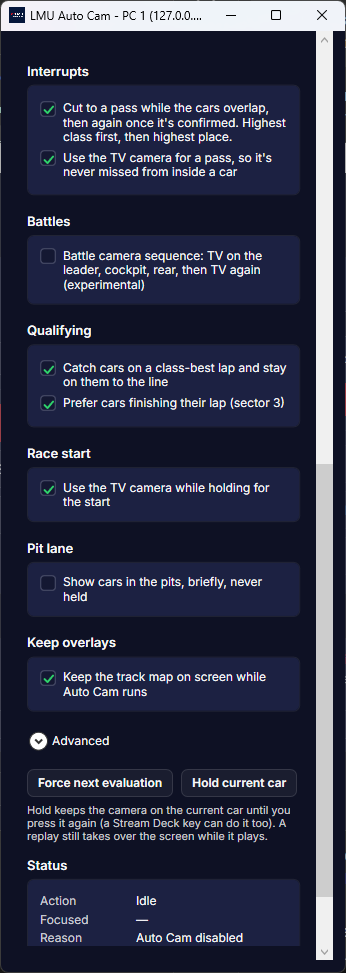
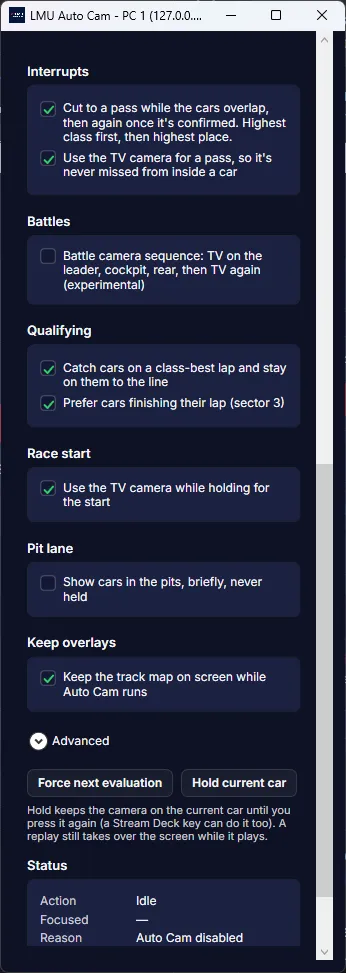
| Interrupts | Cut to a fresh pass; only passes this many seconds old |
| Battle camera sequence (experimental) | TV, then trackside on the trailing car, then back to TV |
| Battle pacing | Cap time on one battle, rest a pair after leaving it, and step the field after a run of battles |
| Race start | Hold the leader after the green, optionally on the TV camera |
| Pit lane | Show cars in the pits (off by default); it always moves off a car that pits |
| Keep the Track Map visible | Don't clear the track map when changing overlays |
| Qualifying | Cut to a car on course for a class-best lap, and stay with purple sectors |
| Hold current car | Pin the director to the current car until you switch it off (also on a Stream Deck key). A replay still takes over the screen while it plays |