
Livery Hub
Show each car's real livery on the broadcast graphics instead of the game's stock car.
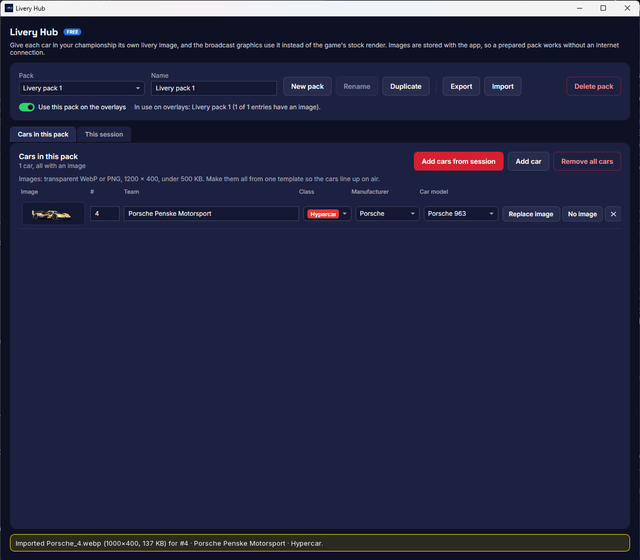
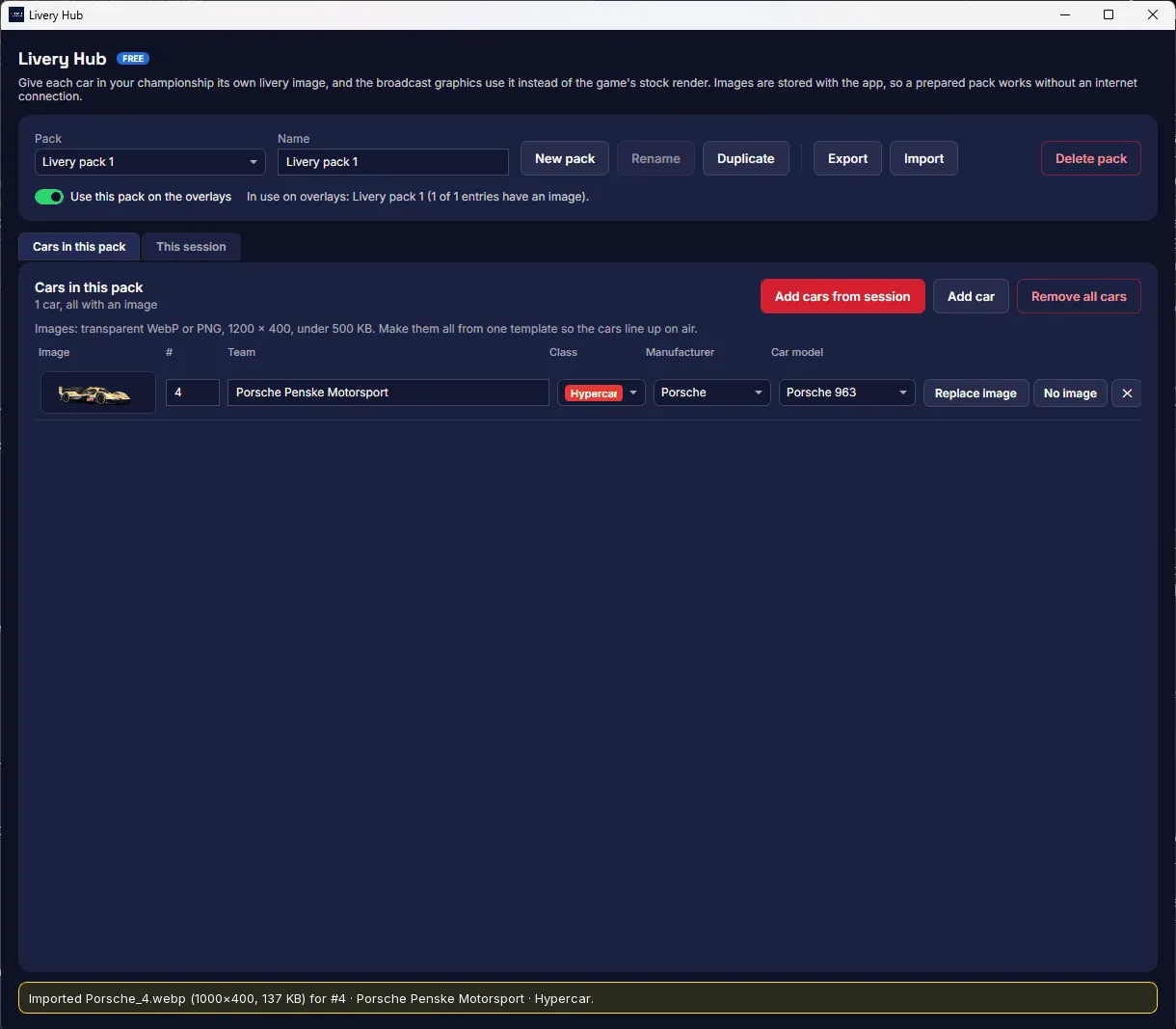
The Livery Hub is free on every plan. Build a livery pack for your championship, one entry per car with a picture of its livery, and the broadcast graphics show that picture for every car they can match, and the game's own render for the rest. Cars are matched to the session by number, class and team, and any decision you make is remembered.
Packs are stored with the app on your PC, so a pack you prepared before the event works without an internet connection.
Before you start
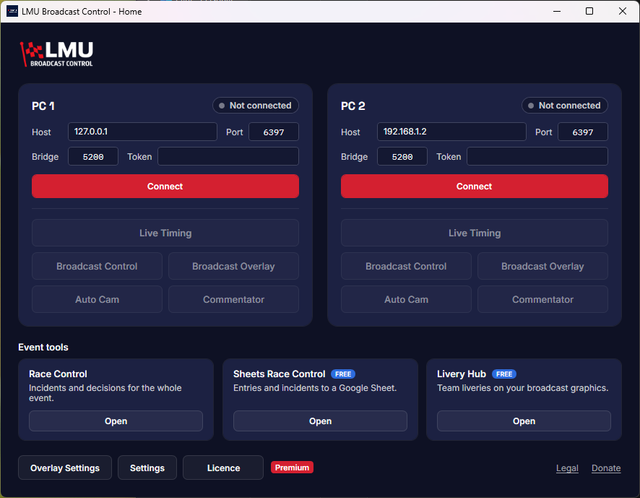
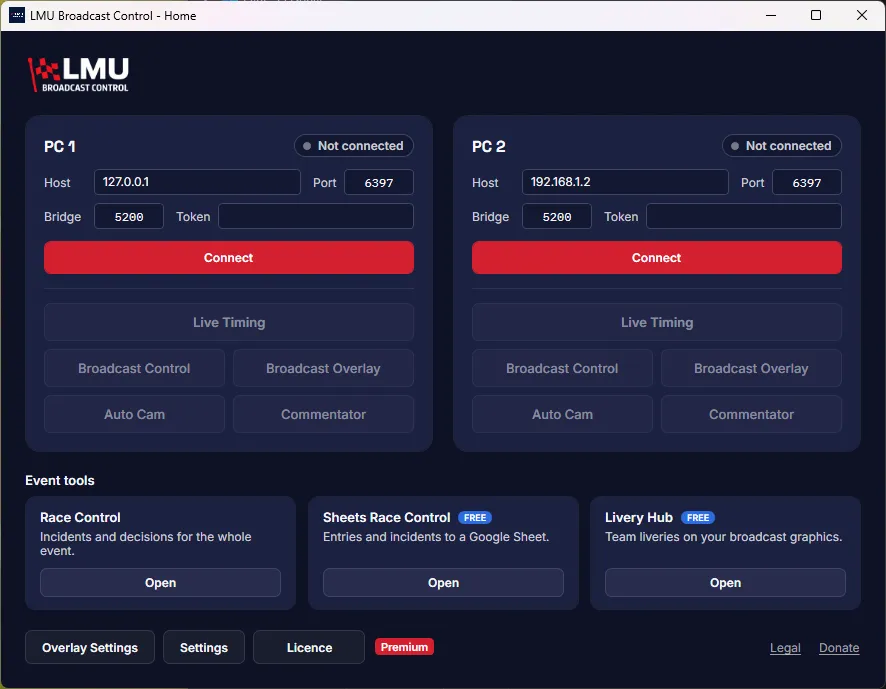
Connect the PC on the Home screen and open Live Timing or Overlay Controls for it: the list of cars on track comes from live timing. You can also build a pack with no game running, by adding cars by hand.
Images: one per car, a transparent WebP or PNG, about 3 to 1 (1200×400 works well) and under 500 KB. JPG is refused, as it can't be transparent. Make every picture from the same template, with the car placed the same way: the graphics draw each car at the scale of its picture, so they line up like a real grid.
Create a pack
Open Livery Hub and click New pack. One pack per championship keeps the right cars together.
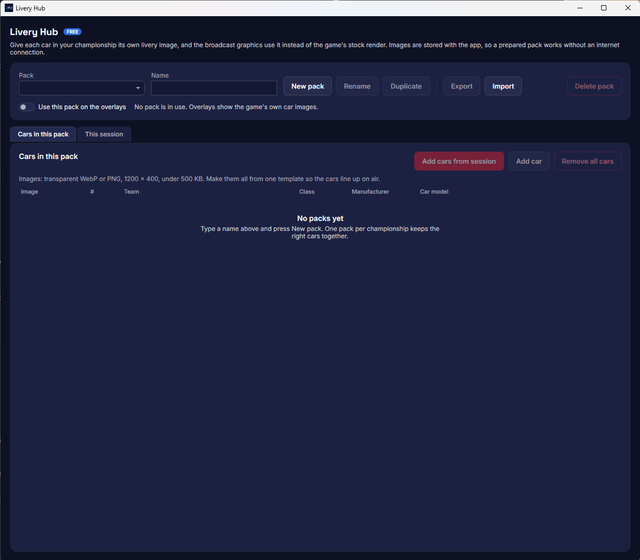
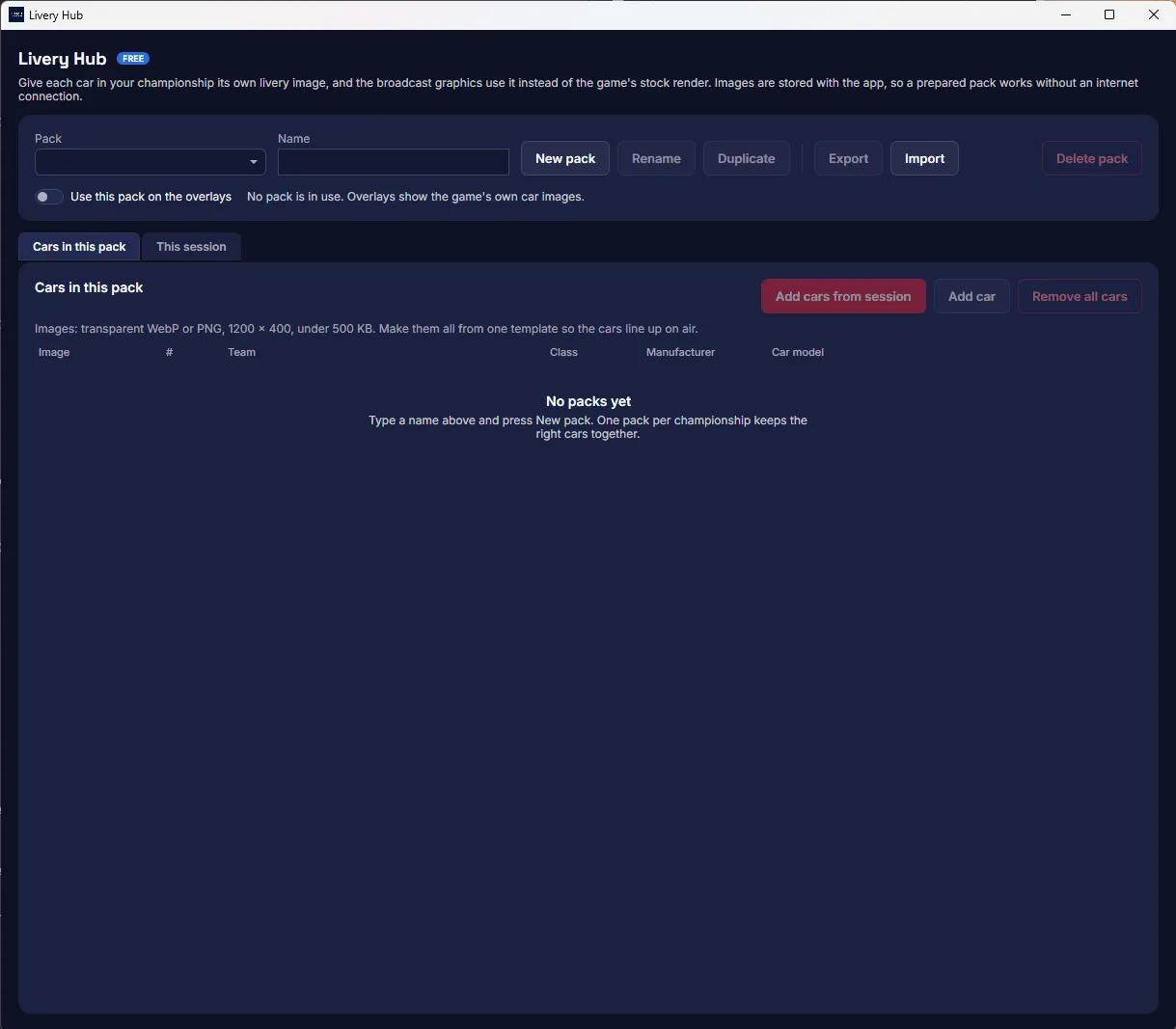
- Use this pack on the overlays puts the pack on air. One pack can be in use at a time; turn it off and the overlays go back to the game's images.
- Rename applies the name in the Name box. Duplicate copies a pack with its cars and images, to start a new season from the last one. Delete pack asks first.
Add the cars
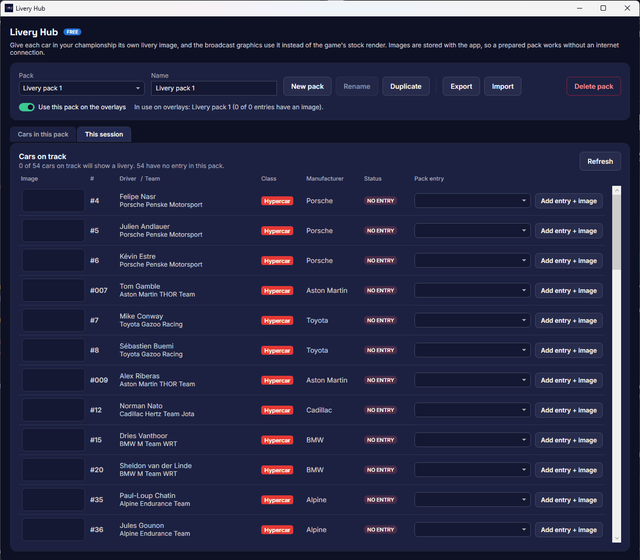
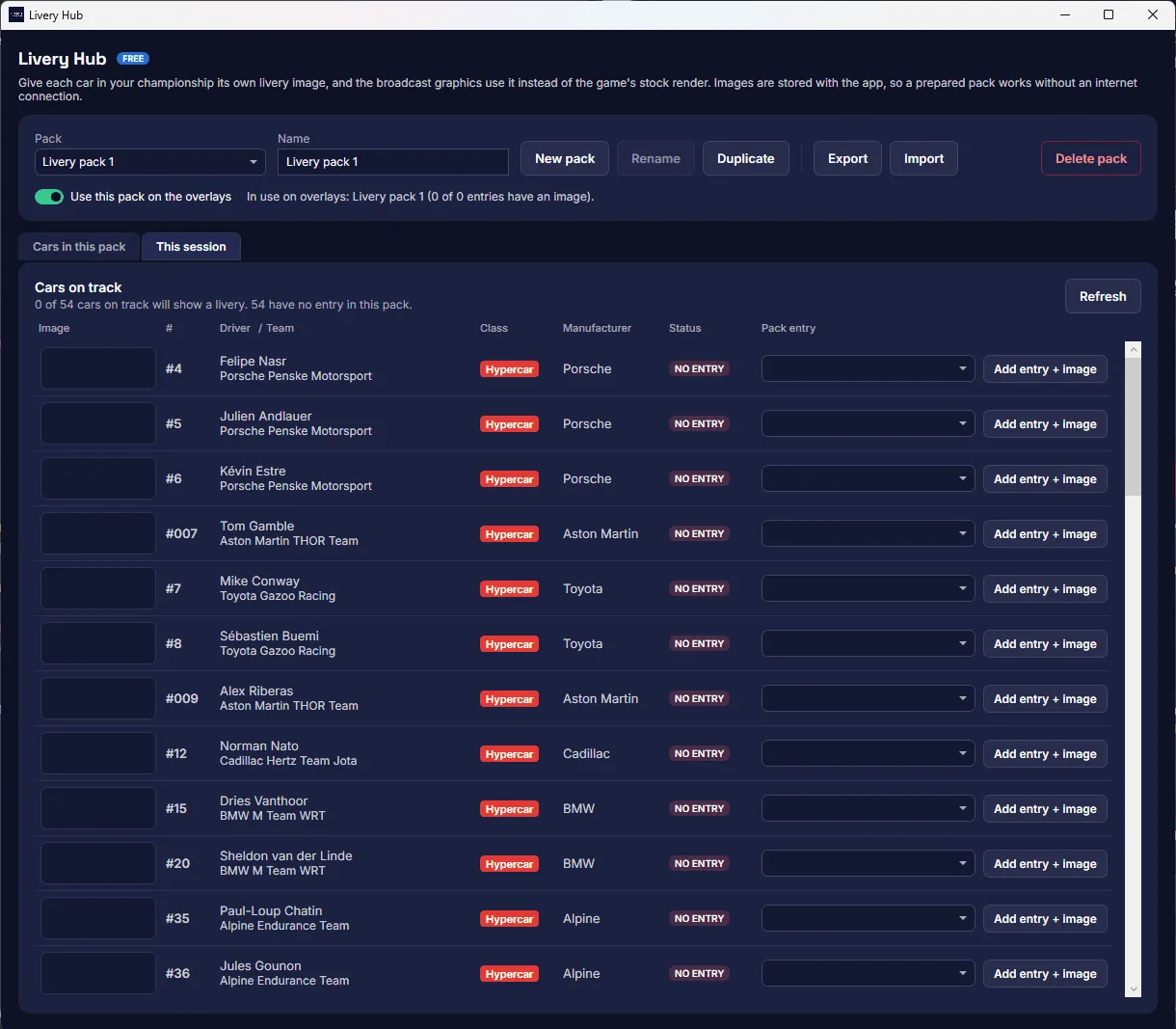
On Cars in this pack, Add cars from session adds an entry for every car on track, with its number, team, class, make and model. Cars already in the pack are skipped, so it's safe to run again. Add car adds a blank entry, and on the This session tab, Add entry + image adds a car and asks for its picture in one go.
Number and team are what matching relies on, so type the team as the game shows it. The class and car model tell apart two cars with the same number.
Add the images
Click Import image on a car's row and choose the file. Replace image swaps it, and No image puts the game's render back. On air, a new image shows within a second or two.
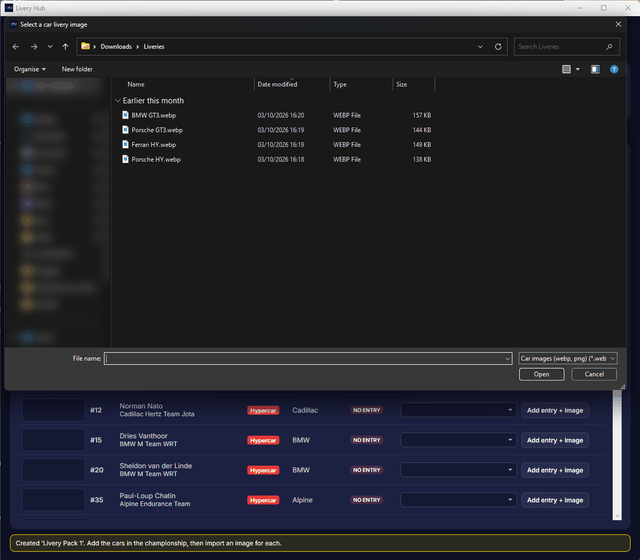
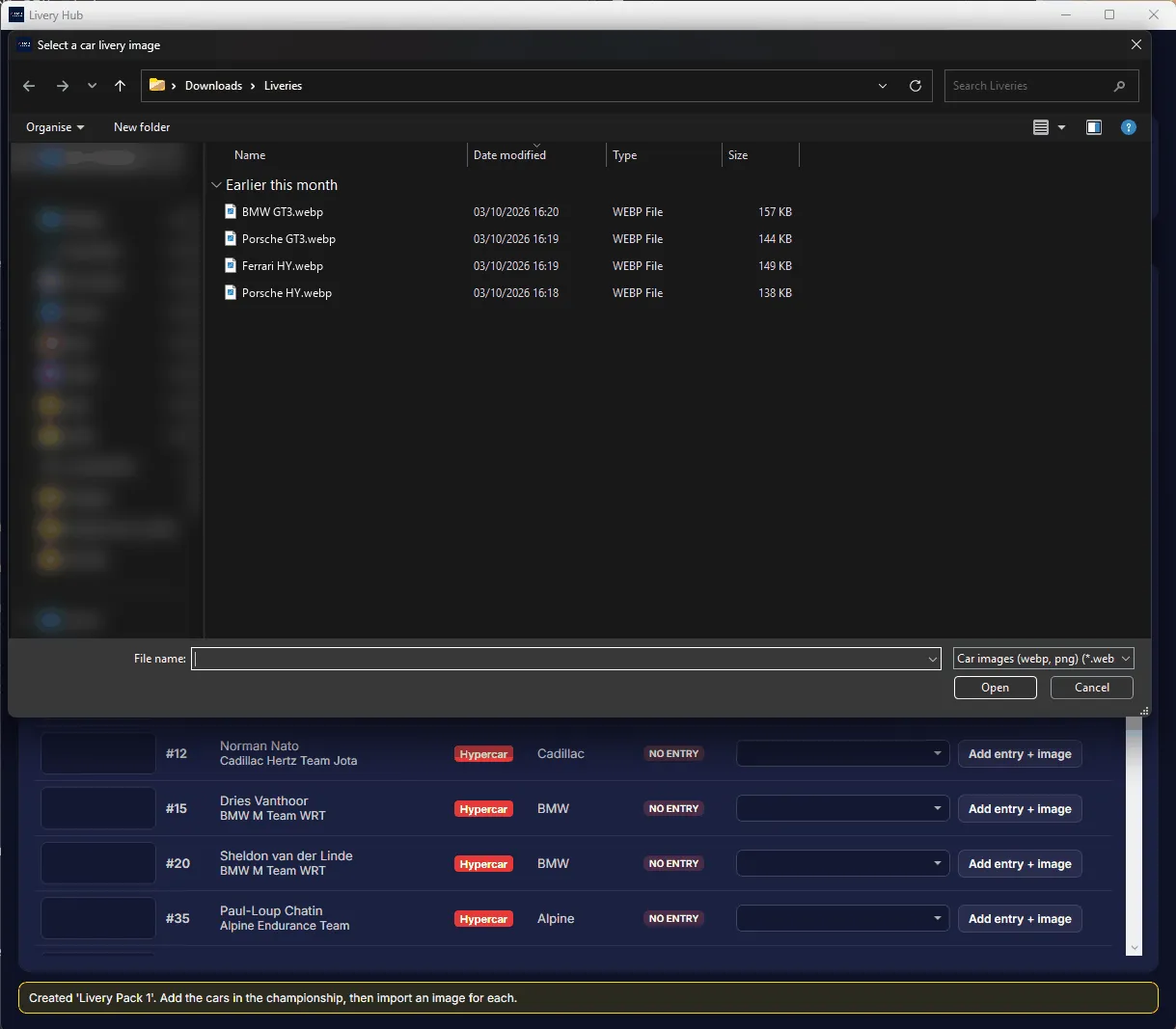
Many league liveries are on RaceControl (racecontrol.gg): save the side view, the first picture on a livery's page, and import it as it is. Only use liveries you have permission to show.
Check the matches
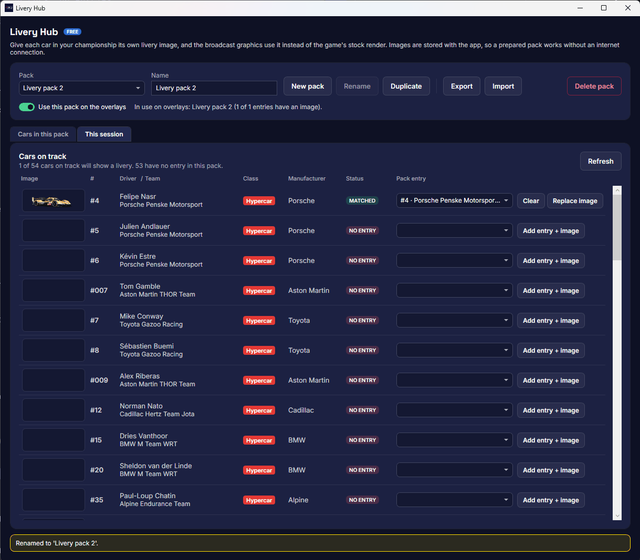
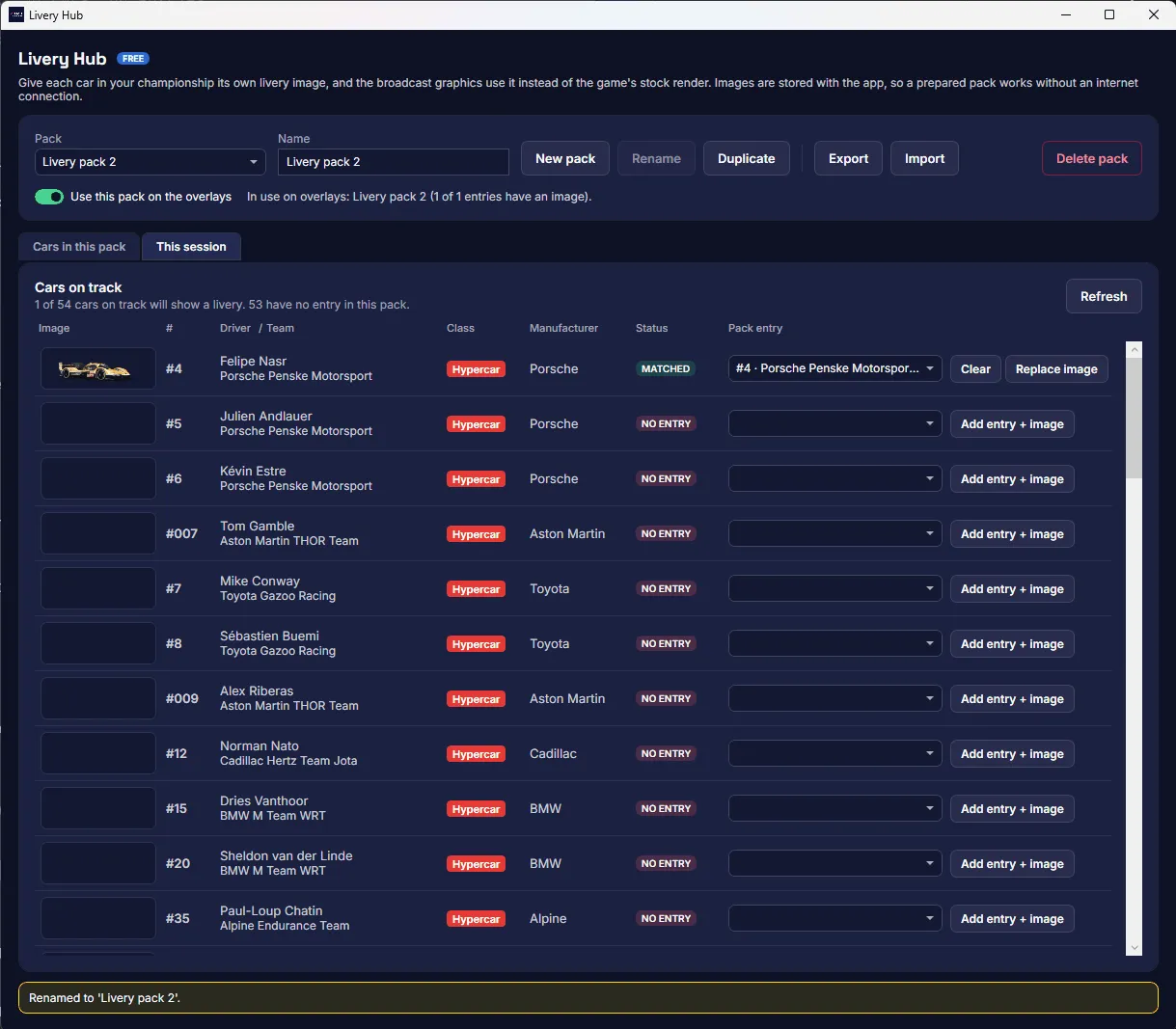
The This session tab lists every car on track and what the pack will do for it.
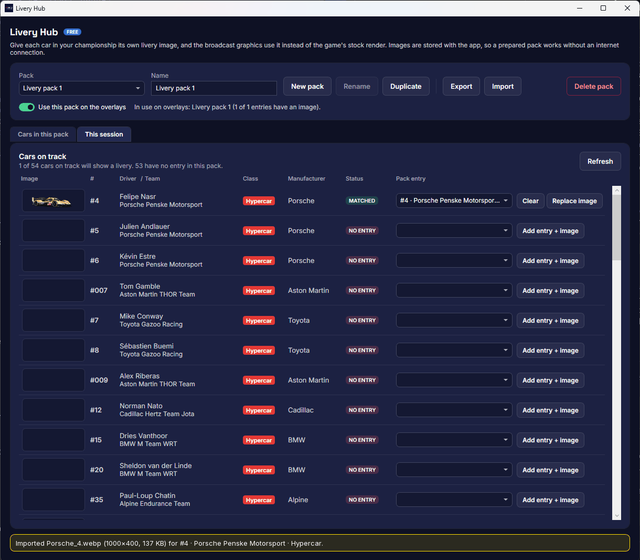
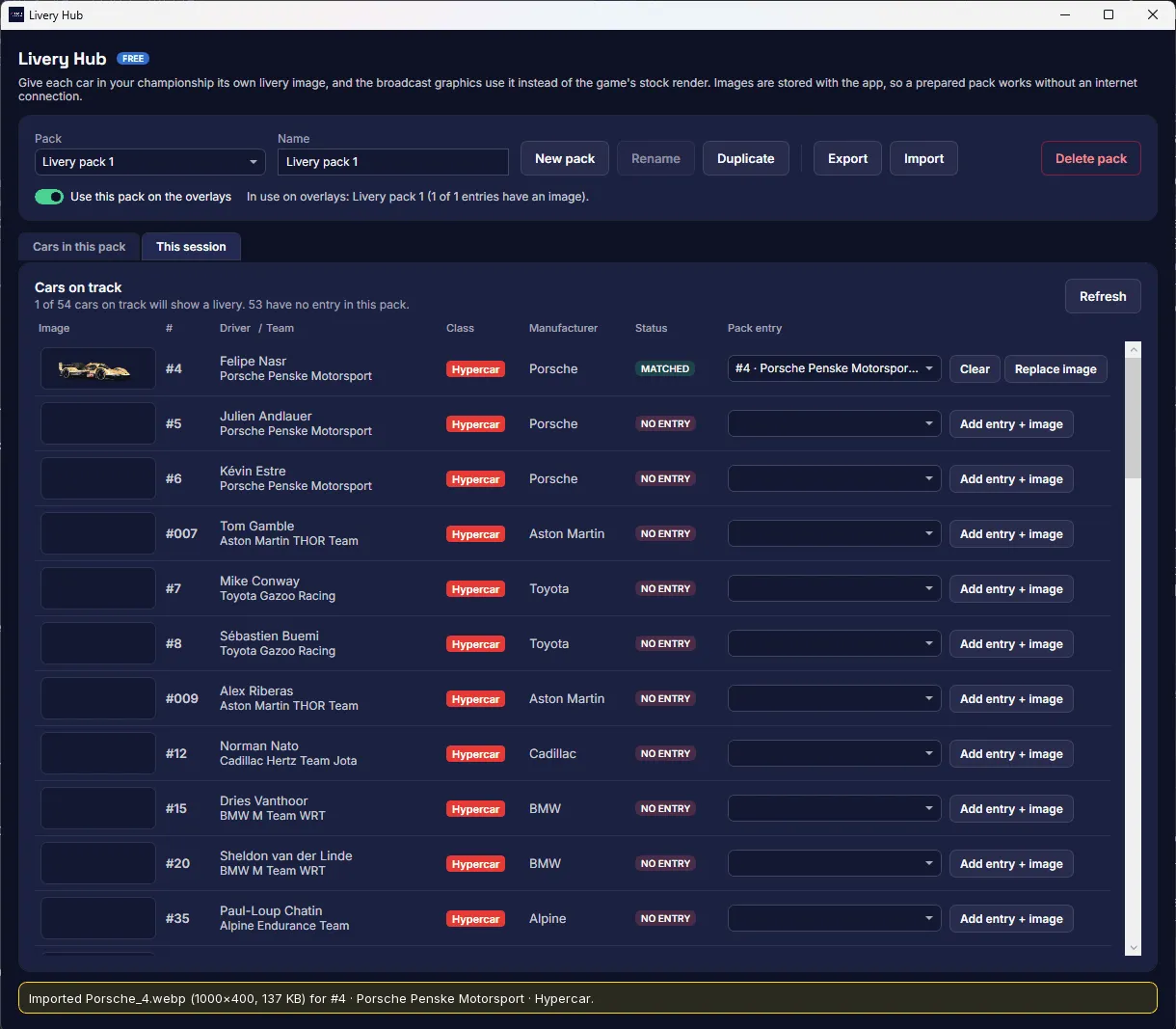
- MATCHED: the app found the car's entry. ASSIGNED: you chose it, and it's remembered.
- SUGGESTED: one entry looks right but something disagrees, usually the team. Click Accept.
- AMBIGUOUS: more than one entry fits. Pick one in Pack entry and click Assign.
- NO ENTRY: no car in the pack has that number. Use Add entry + image.
- NO LIVERY: you chose to show nothing for this car. Undo brings the automatic match back.
Decisions follow the car, not the session, so they still apply after a driver change. Some leagues give a whole team one number: when two cars share a number, class, team and model, the app tells them apart by driver once you've assigned each.
On the broadcast
With a pack in use, the starting grid, the driver card, the 1v1 and replay cards, the extended battle rows and the session and mid-race results show the pack's picture for a matched car. The championship standings show it for cars in the pack, as their rows come from your CSV. Each place has its own switch in Overlay Settings → Car liveries, and the battle rows have one in Overlay Controls.
Move a pack to another PC
- Select the pack and click Export. It saves one
.liverypackfile with the cars, the images and your corrections. - Copy the file to the other PC.
- There, click Import and pick the file. If that PC already has the pack, choose to replace it or keep both.
Packs and images stay on your PC unless you export them. Nothing is uploaded.