
Getting started
Install the app, connect it to the game, and get the overlay into OBS.
What you need
- System
- Windows 10 or later
- Runtime
- .NET 8 Desktop Runtime (the installer offers it if it's missing)
- Game
- Le Mans Ultimate, on this PC or another on your network
- Streaming
- OBS Studio
Install
Download the installer from the download page and run it. It installs for your Windows user only, so no admin rights are needed, by default into %LOCALAPPDATA%\Programs\LMU_Broadcast_Control\.
Windows may show a blue "Windows protected your PC" box because the installer isn't yet recognised by SmartScreen. Click More info, then Run anyway.
The installer also puts the SM Bridge (in the SM Bridge folder) and the Stream Deck plugin (in plugins) next to the app, with the User Guide as a Word document.
Turn on the game's web server
The app reads the session from Le Mans Ultimate's built-in web server. In the game, go to Options → Controller → Multiplayer (or the in-game UI Control Panel) and make sure the web server is enabled. The default ports are 6397 (REST) and 6398 (WebSocket).
Connect
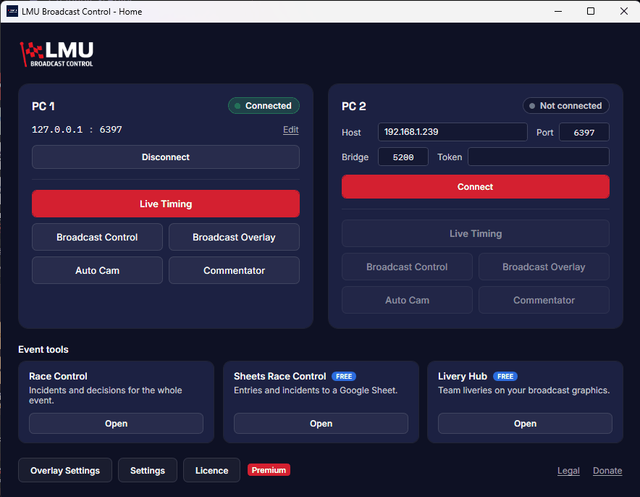
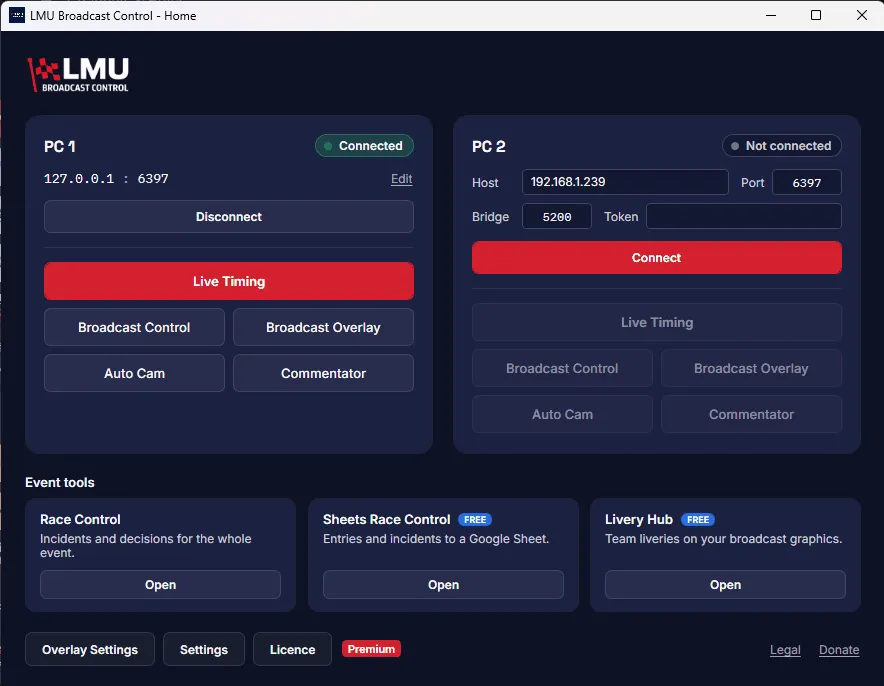
Open the app. The Home screen has a card for each PC. PC1 starts as localhost, for a game on the same PC; for a game on another PC, enter its IP address instead (two-PC setup). Check the port and click Connect.
The chip at the top of each card shows the connection: green Connected once a session is loaded in the game, amber when something is missing (on a second PC, Connected, no bridge), and grey Not connected. Hover over it to see each check. Once a PC is connected its address folds to one line; click Edit to change it.
Open the windows you need
From the PC1 card, open:
- Live Timing, the timing grid for the whole field. It's the main button.
- Broadcast Control, the incident feed with replay and camera controls.
- Broadcast Overlay, which opens Overlay Controls for the OBS overlay.
- Auto Cam, if you want the camera directed for you.
- Commentator, to send a remote commentator a live view Premium plan.
Until a PC connects, its buttons stay greyed out. Race Control, Sheets Race Control and Livery Hub are under Event tools, below the cards.
Add the overlay to OBS
- Open Broadcast Overlay from the Home screen.
- Copy the URL from Overlay Controls.
- In OBS, add a Browser Source with that URL, at 1920×1080.
Keep Overlay Controls open while you stream: the overlay is served by the app, and only while that window is open. See Overlays for what each element shows.
Set up the event card
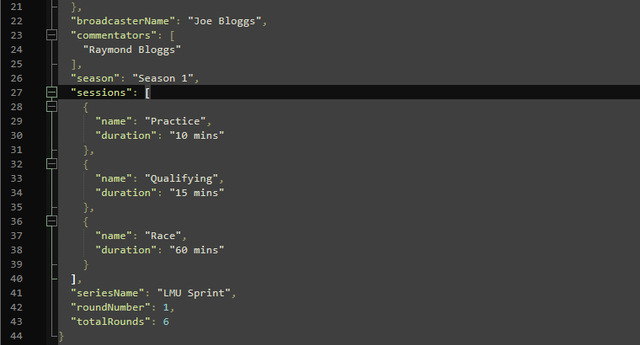
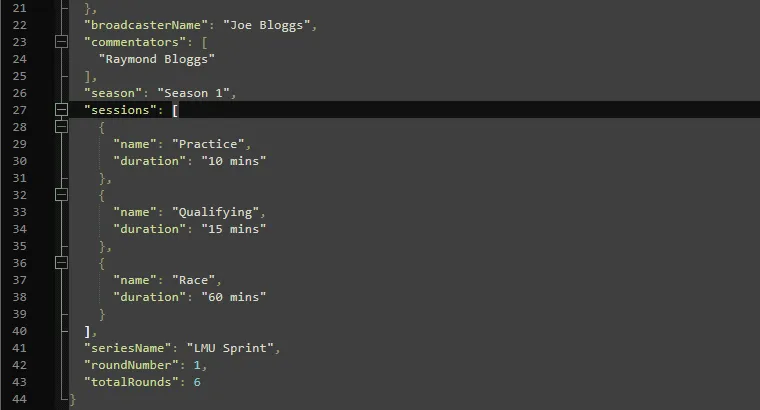
In Overlay Controls, click Edit Event Card. This creates and opens %LOCALAPPDATA%\LMU_Broadcast_Control\JSON\event_card.json. Fill in the broadcaster, commentators, series, season, round and sessions, save the file, then click Show Event Card. The track name and weather come from the game.
Settings
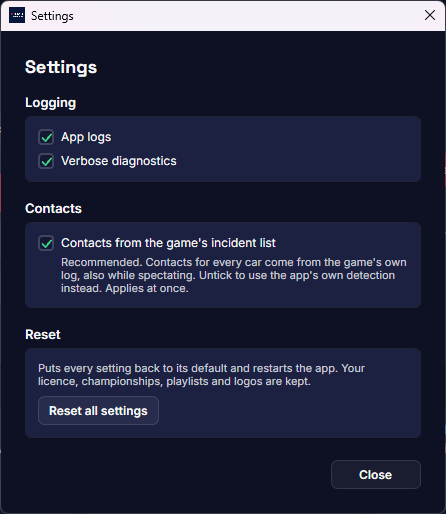
Click Settings at the bottom of the Home screen. It opens its own window, and every change saves straight away:
| Setting | Default | What it does |
|---|---|---|
| App logs | Off | Writes a diagnostic log. Turn it on when you're reporting a problem. |
| Verbose diagnostics | Off | Adds much more detail to the log for rare problems. Logs get a lot bigger, so leave it off unless you're asked for it. |
| Contacts from the game's incident list | On | Car-to-car contacts come from the game's own contact log, for every car, even when you're spectating. Needs LMU 1.4.1 or later. Untick it to use the app's own contact detection instead. |
Reset all settings puts every setting back to its default and restarts the app. Your licence, imported championships, saved playlists and custom logos are kept.
Updates
The app checks for new releases when it starts. When one is out, a banner appears on the Home screen: click it to read the release notes, then download and install. The download is checked against its SHA-256 checksum first.
Checking a download
Each release publishes a SHA256SUMS file. To check an installer by hand, compare its hash with the line for that file. In PowerShell:
Get-FileHash .\the-installer.exe -Algorithm SHA256
The app's own updates are checked automatically.
Adding a licence key
The free app needs no licence. On the free plan, Get Premium on the Home screen opens the plans. If you subscribe to the Premium plan, click Licence on the Home screen, paste your key and click Activate. The Licence window then shows your plan, when it expires, this PC's name and how many of your PCs are running the app. See activating a licence key.