
Race Control and the Stewards Room
Run your stewarding in the browser. The app sends contacts to a private room, where your stewards rule on them from anywhere.
The Stewards Room is part of the Premium plan. On the free plan, Google Sheets Race Control captures the same incidents into a spreadsheet; running one doesn't affect the other.
Once the room is started, the app keeps it fed: car-to-car contacts as they happen, the event's name, and the cars on track so a steward can name the responsible car. Only contacts reach the room, and only in qualifying and the race. A car that spins alone, a slow car or an off-track feeds the overlay and Live Timing, not stewarding.
Your stewards need only a browser and the link you send them: no licence, no account and no install.
| Google Sheets Race Control | Stewards Room | |
|---|---|---|
| Where stewards work | A spreadsheet you own | A private web room |
| Who can see it | Anyone you share the sheet with | Only people holding a link you issued |
| Roles | None | Race Director, Steward, Viewer |
| Decisions | Typed into cells | Recorded against the incident, with an audit trail |
| Reports | The sheet itself | PDF and CSV, with your branding |
| On the broadcast | Nothing | Rulings as overlay banners |
| Plan | Every plan | Premium plan |
Open Race Control
Connect the PC on the Home screen first: the app is what feeds the room. Then open Race Control, under Event tools.
The top of the window is your event, with three steps to get the room going. Below it, Game penalties lists what the game has penalised this session, with its reasons; it's for you, and isn't sent to the room. Sent to the room lists the contacts the app has sent to your stewards, newest first.
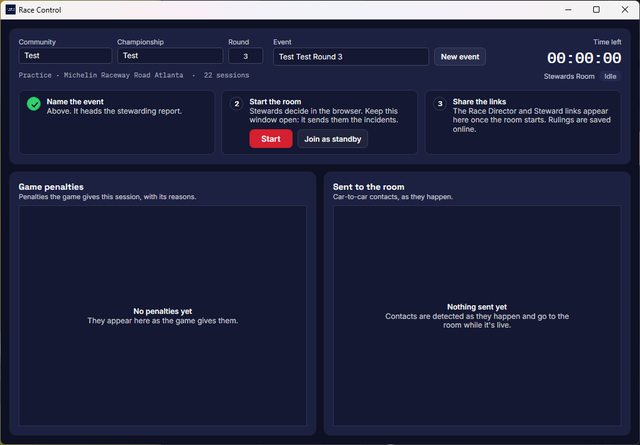
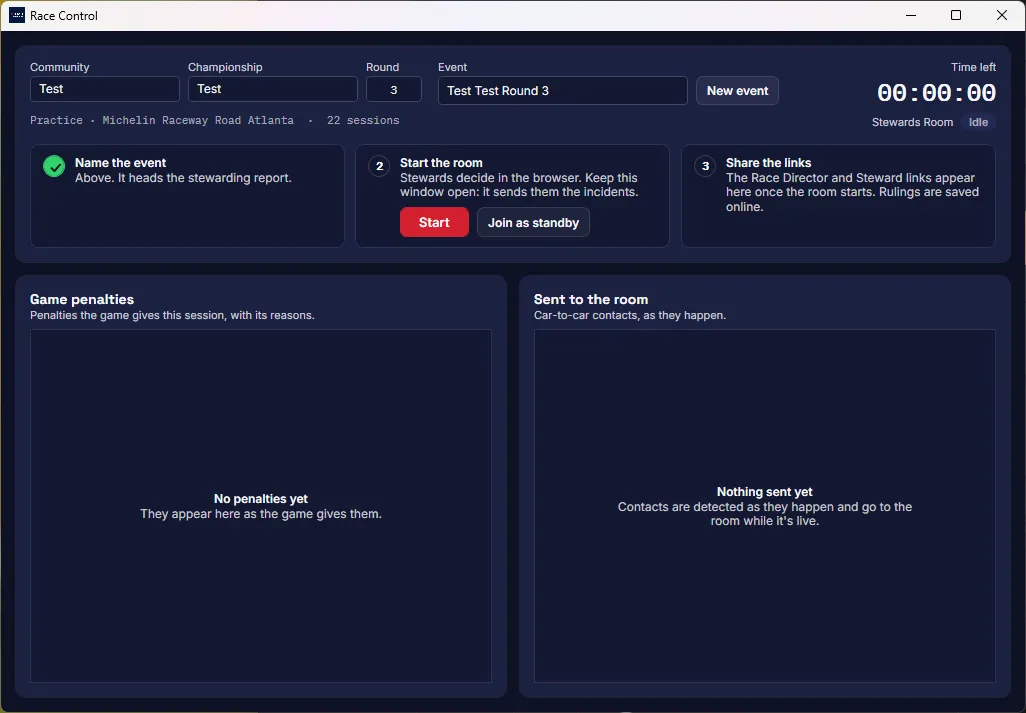
Name the event
Fill in Community, Championship and Round. They name the event in the room, the report and your account, and they're the same fields as Google Sheets Race Control, so filling one fills both. The Event box follows them until you type your own name. Click away from a box before pressing Start, so it saves.
New event starts a fresh event. A whole weekend (practice, qualifying, warm-up and race) is one event, so you only need it for the next race meeting.
Start the room
Click Start. The steps make way for the event code and the links. The Stewards Room chip reads Live feed while the app feeds the room; it reads Reconnecting if the connection drops, with no sound or pop-up, so keep the window where you can see it.
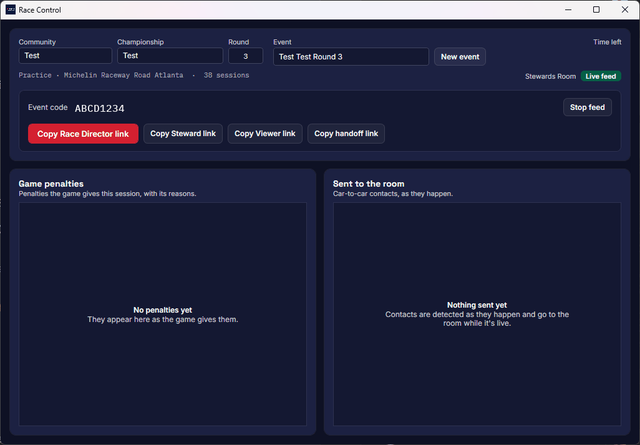
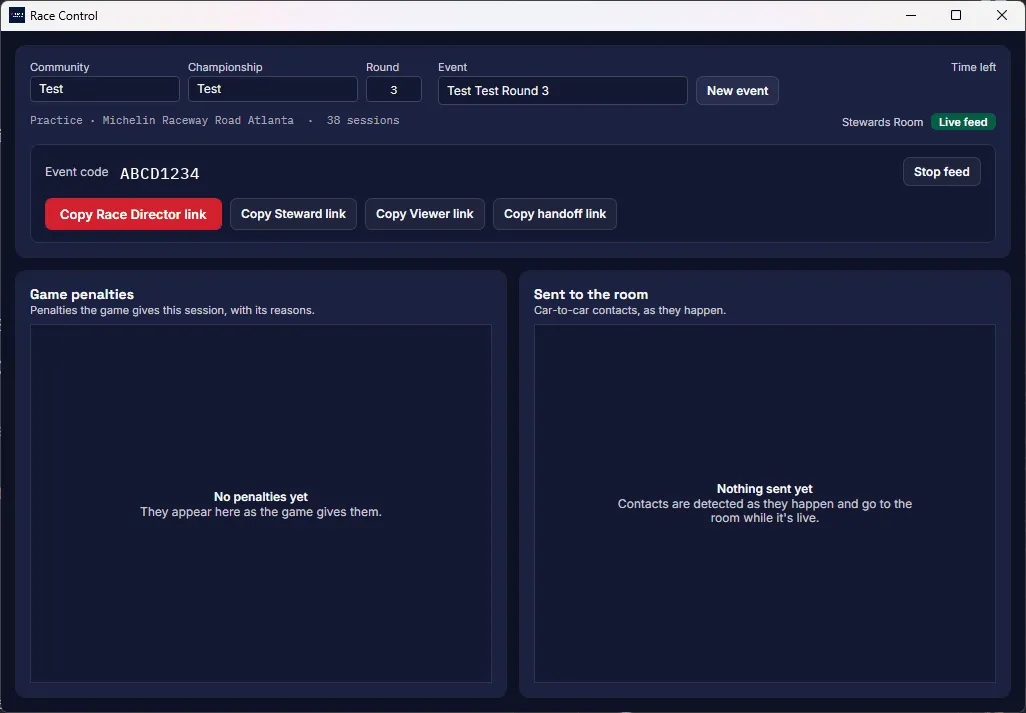
Copy the links somewhere safe straight away. They only show here while the app runs. If the app restarts, pressing Start again creates a new event with new links; to keep the same event, re-issue the links from your account (Race Control) instead.
Stop feed stops sending but leaves the room open for protests. The Race Director closes it from the browser.
A backup PC
A second PC running the app can wait on standby and take over if the live PC crashes, loses its connection or stops its feed. It must be in the same session, for example spectating the same server. It uses one of the Premium plan's 2 places, so if PC 1 and PC 2 are already running, make PC 2 the backup.
- On the PC that started the room, click Copy handoff link. It lets a PC feed your room, so send it like a password.
- On the backup PC, open Race Control and click Join as standby (not Start).
- Paste the link and click Join feed. The chip reads Standby.
When the live PC drops, the backup takes over within a few seconds, or up to 30 seconds after a crash. Never press Start on the backup: it creates a new event and retires the room.
Invite your stewards
The three links differ only in what the holder can do:
- Race Director: everything a steward can do, plus report branding and ending the event. One at a time.
- Steward: review and rule on incidents, log appeals and export the report. The Premium plan seats one steward beside the Race Director.
- Viewer: read-only, and unlimited. For a team principal, a commentator, or a driver who wants to see the reasoning.
The link is the key to the room, so send the Race Director link like a password, and the Viewer link when in doubt. Links stop working after 14 days. Stewards don't need you there: most rulings are made after the race, with your PC switched off.
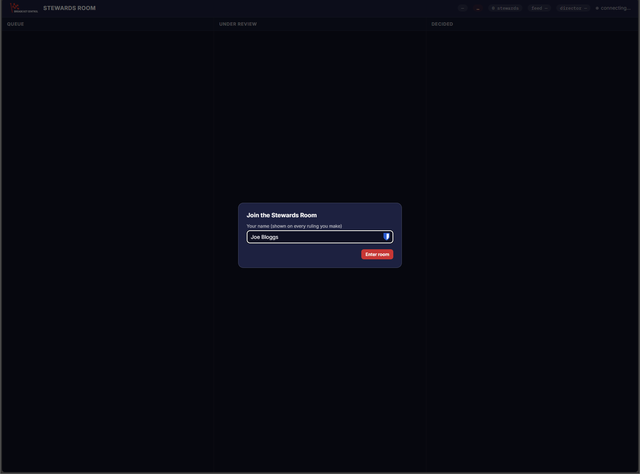
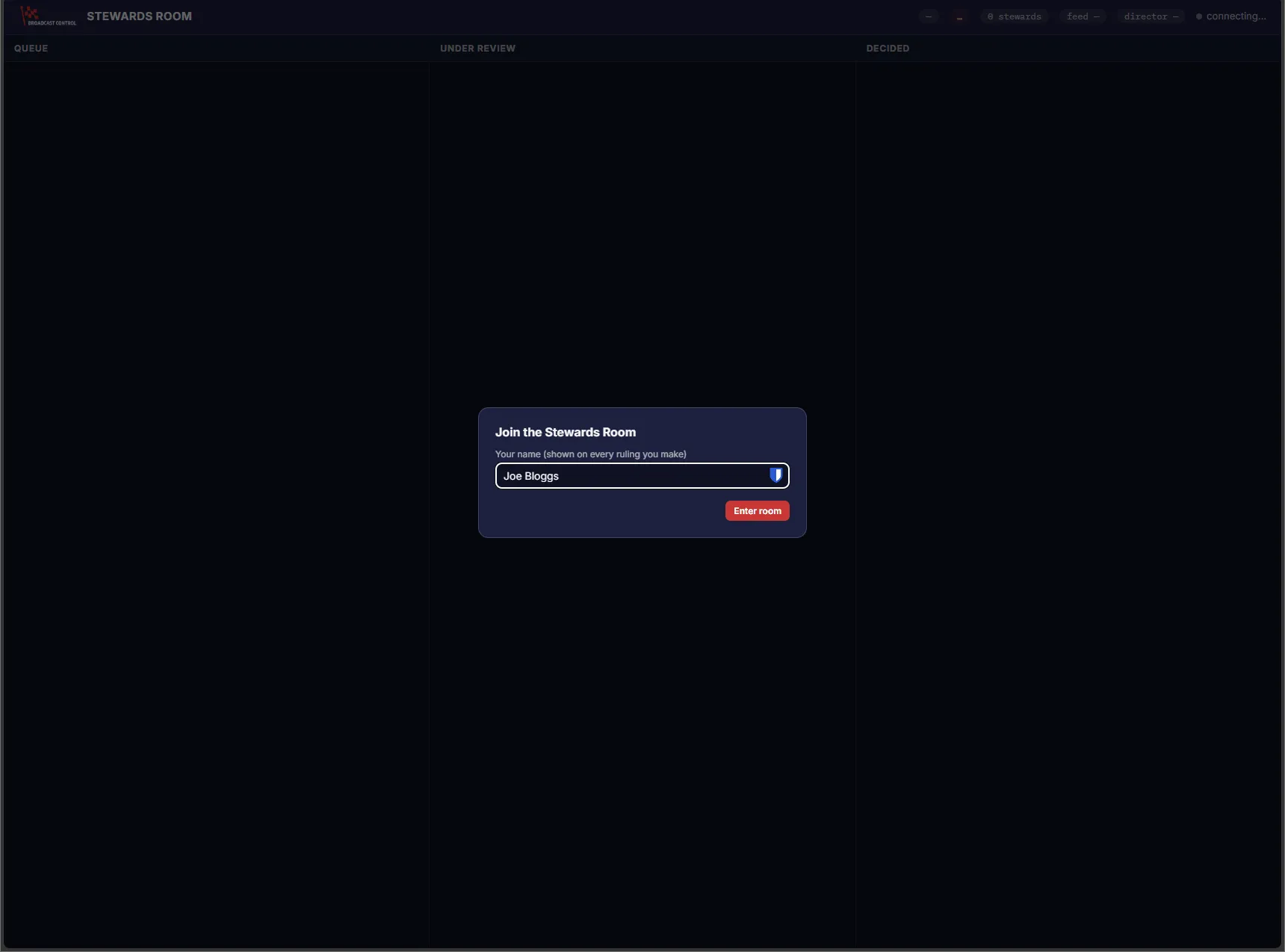
Opening a link asks for a name, which is stamped on every ruling that person makes. Viewers go straight in.
The board
Three columns: Queue, Under Review and Decided, with a tab for each session. Incidents are numbered per session, Q-01 in qualifying and R-01 in the race, and the report uses the same numbers.
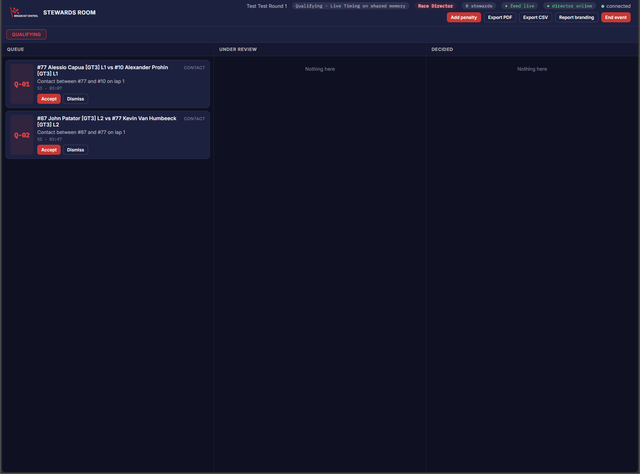
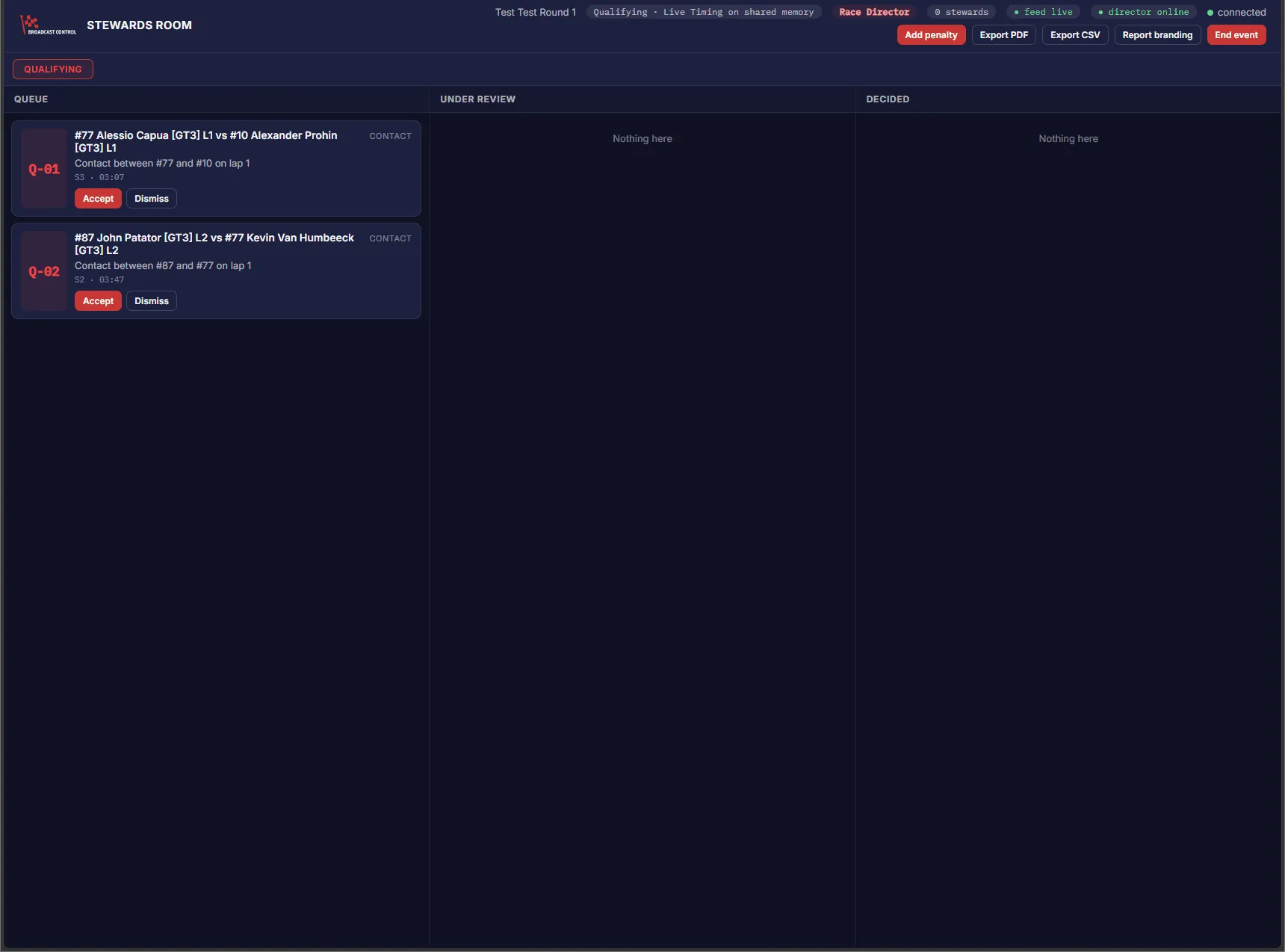
- Accept takes an incident to Under Review. It's yours until you record a decision or release it; nobody else can act on it, the Race Director included.
- Dismiss deletes an incident, without asking and for good, and it leaves the report. To record that you looked and let it go, accept it and rule Racing Incident instead.
- Release puts an incident back in the queue. It also happens if your browser disconnects.
Making a ruling
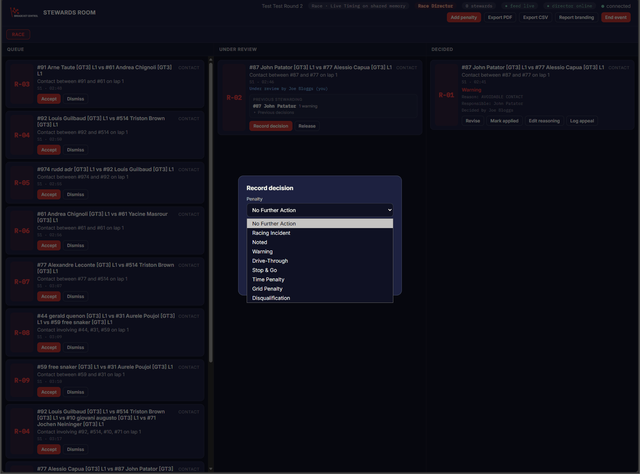
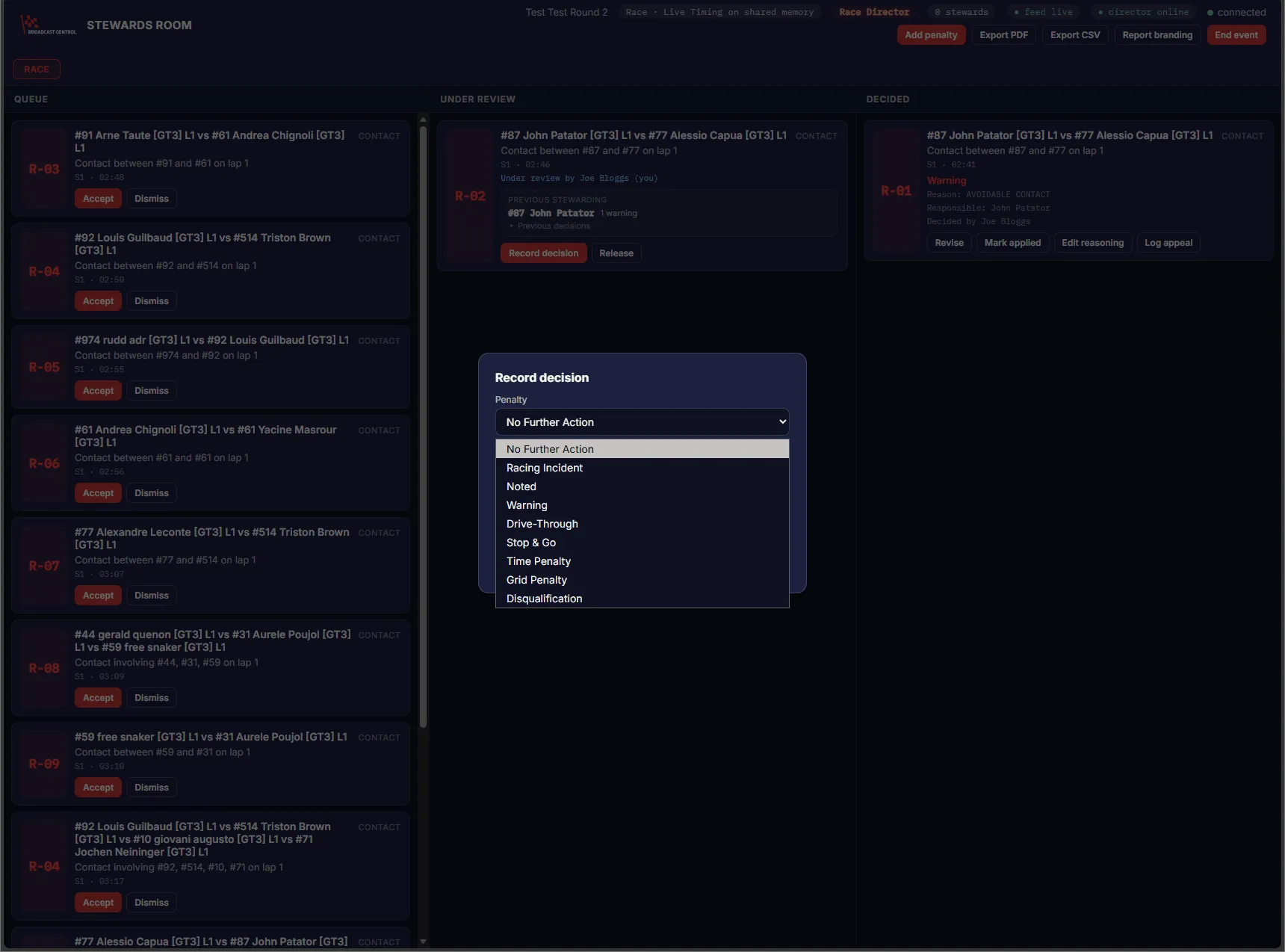
Record decision opens the ruling. Penalty runs from No Further Action, Racing Incident, Noted and Warning to Drive-Through, Stop & Go, Time Penalty, Grid Penalty and Disqualification; a time penalty or stop and go asks for the seconds. Responsible car lists the cars in the incident, or none.
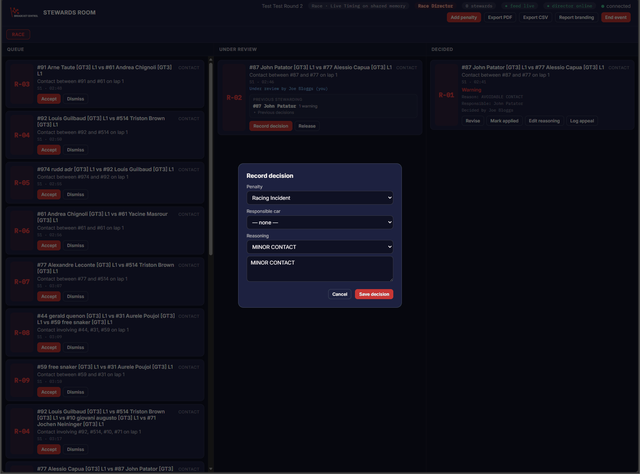
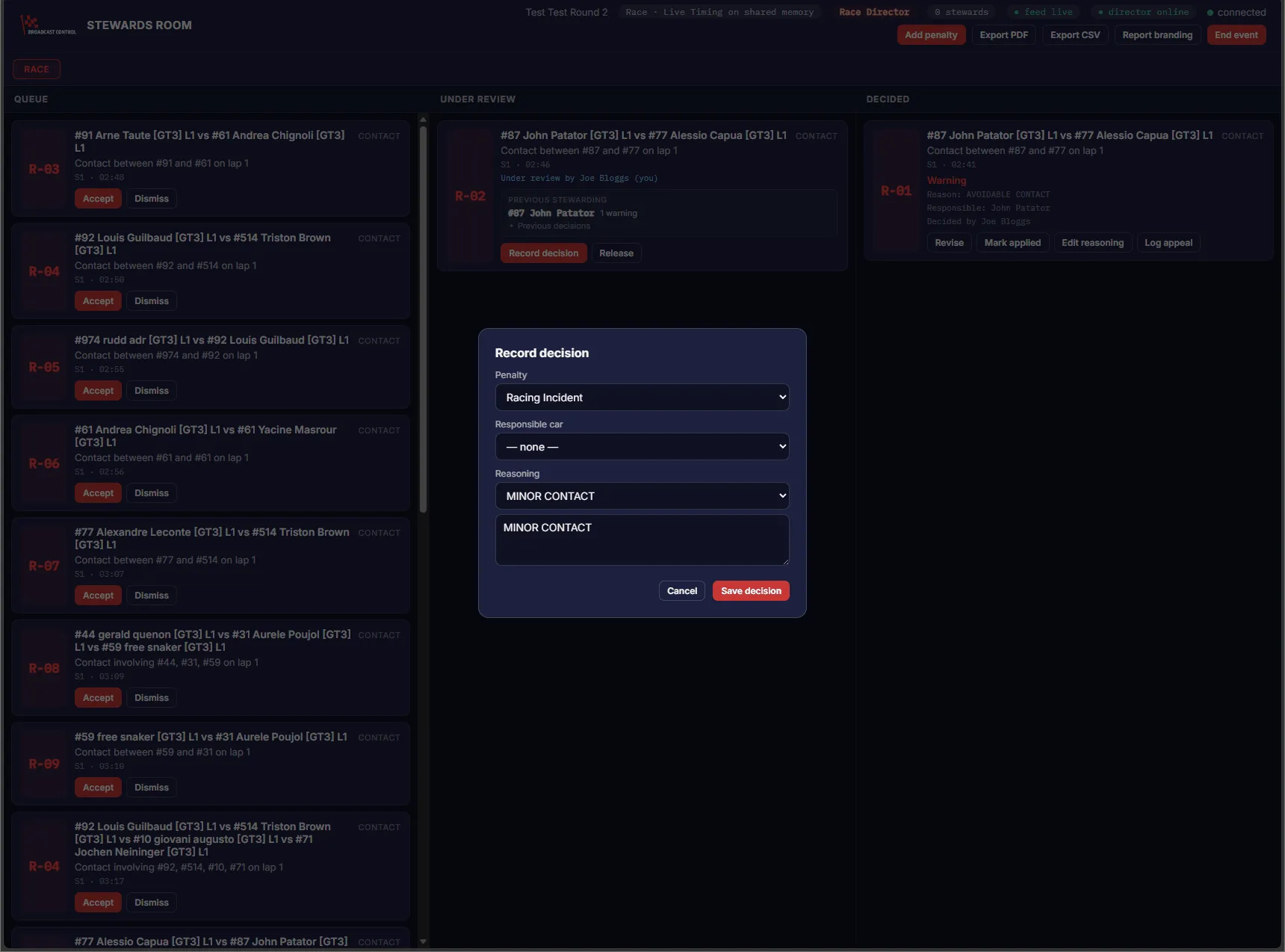
Reasoning has standard reasons (avoidable contact, causing a collision, unsafe rejoin and more) and a text box. It's what a driver reads: the description in the report and the headline of the banner on air. Save decision files it in Decided, with your name.
While you decide, the card shows what each car has already had this event, for example "2 penalties · 1 warning · 1 NFA". A ruling counts against the responsible car only, so a car isn't blamed for being hit. No Further Action is never counted; rule Racing Incident or Noted if you want it on a car's record.
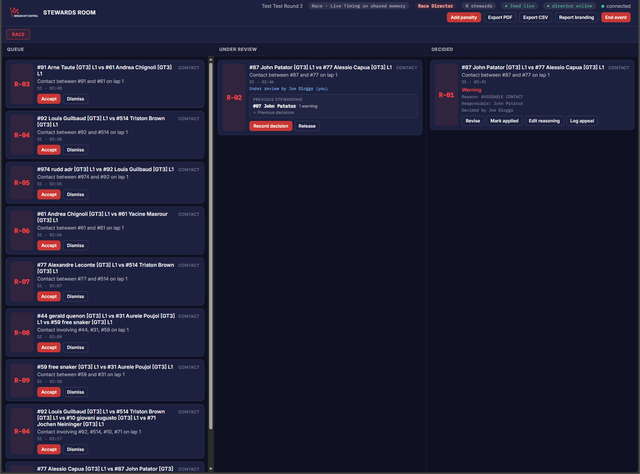
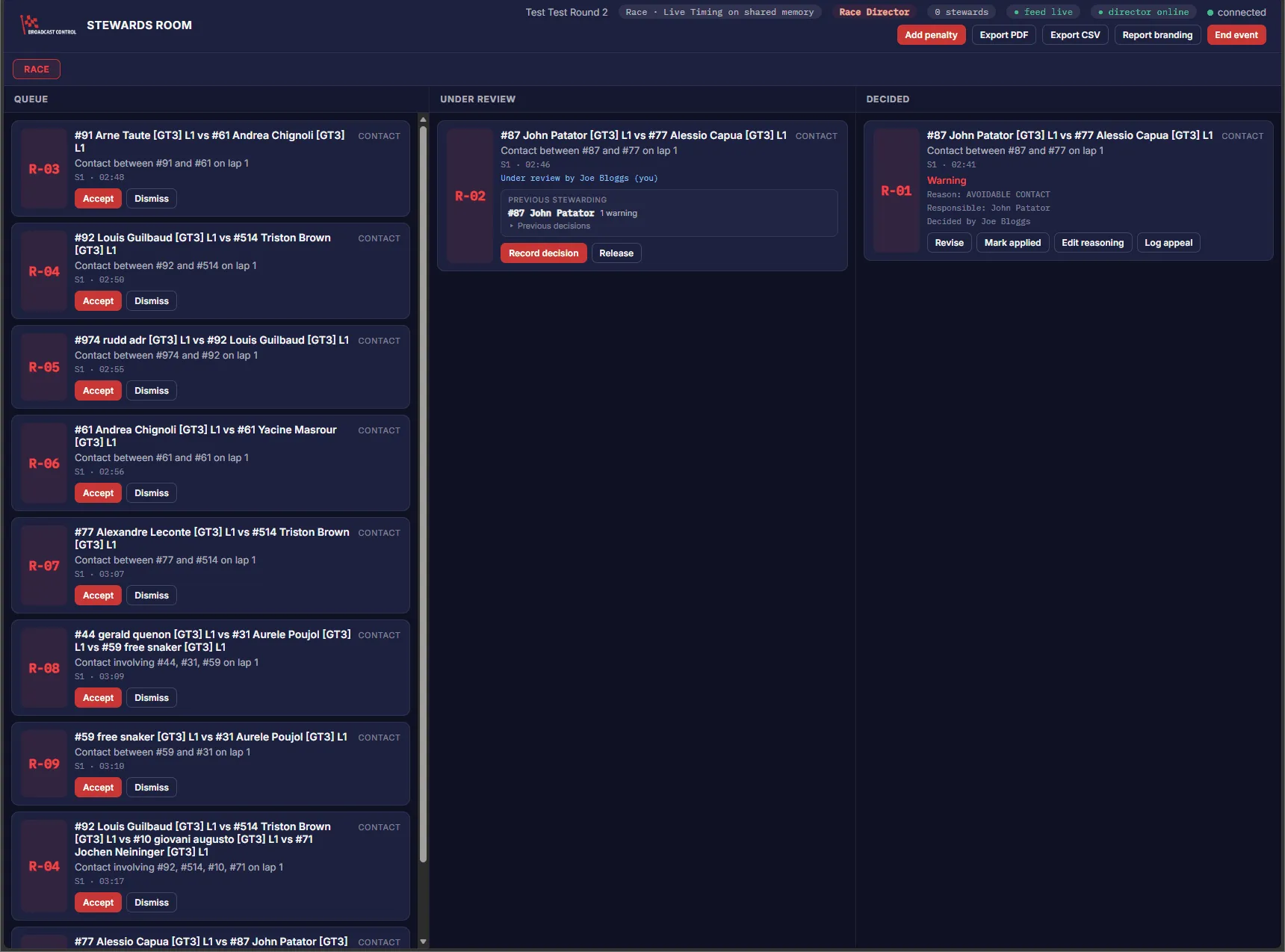
A decided incident can be revised (the change is kept in the audit trail), marked applied, have its reasoning edited, or have an appeal logged once.
On the broadcast
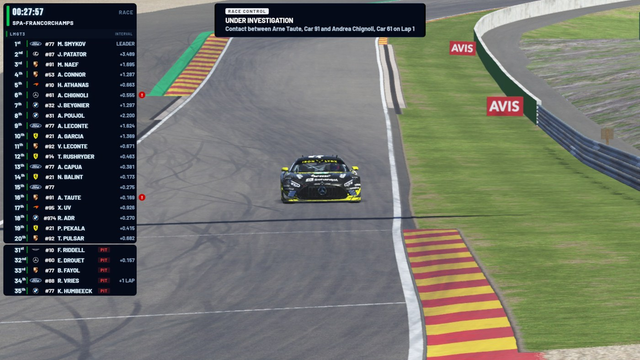
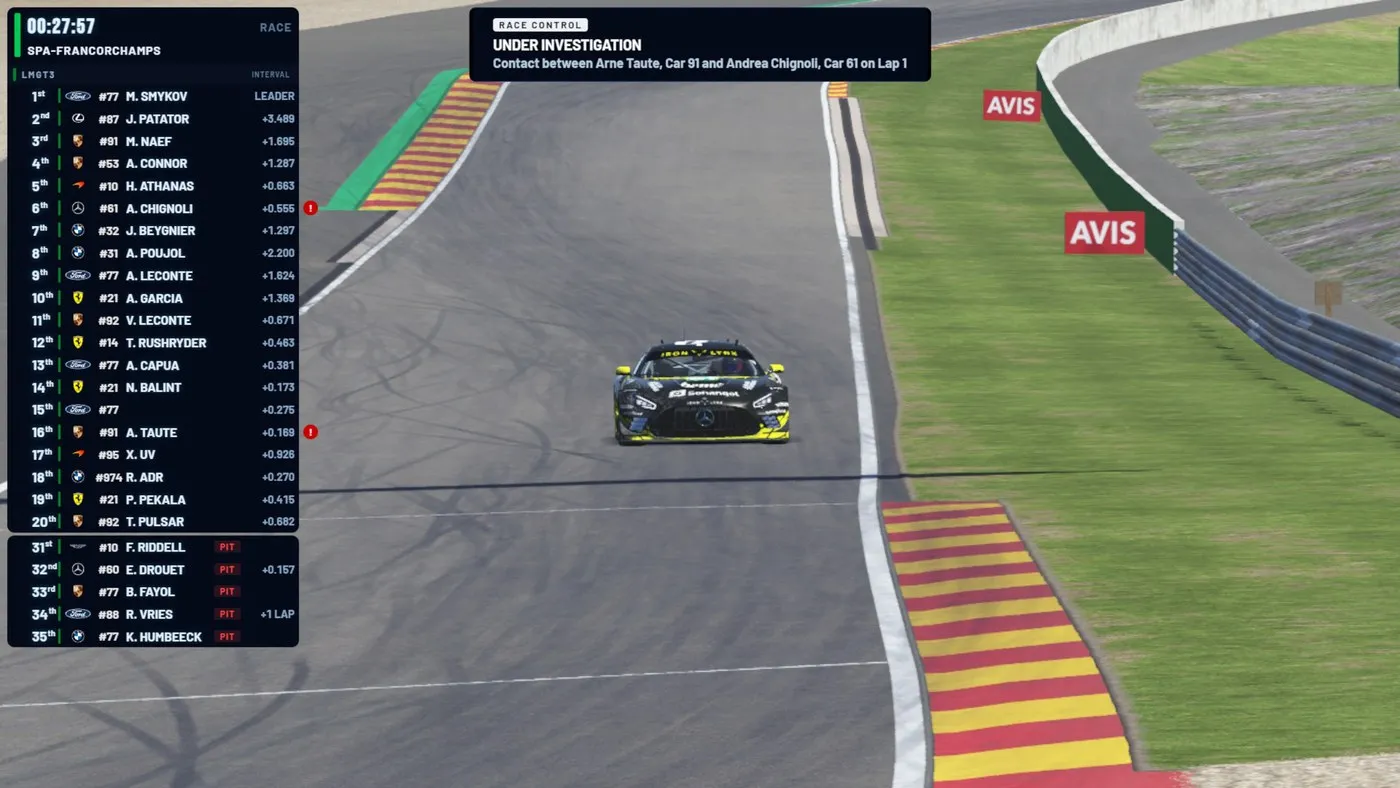
If you run the Broadcast Overlay, rulings reach the stream by themselves, even from a separate OBS PC. Accepting an incident puts it on air as under investigation, and Mark applied puts the ruling on air. Saving a decision alone doesn't. Cars in a live incident get a ! beside them on the tower: red under investigation, orange under appeal.
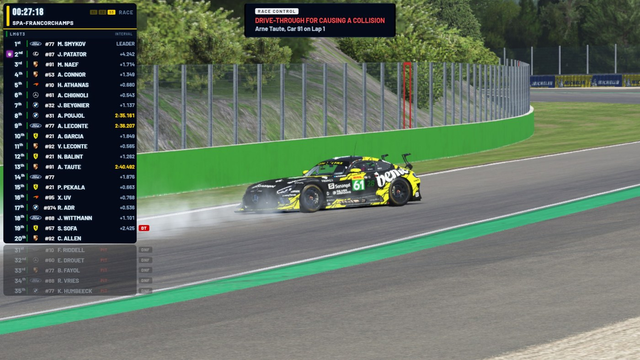
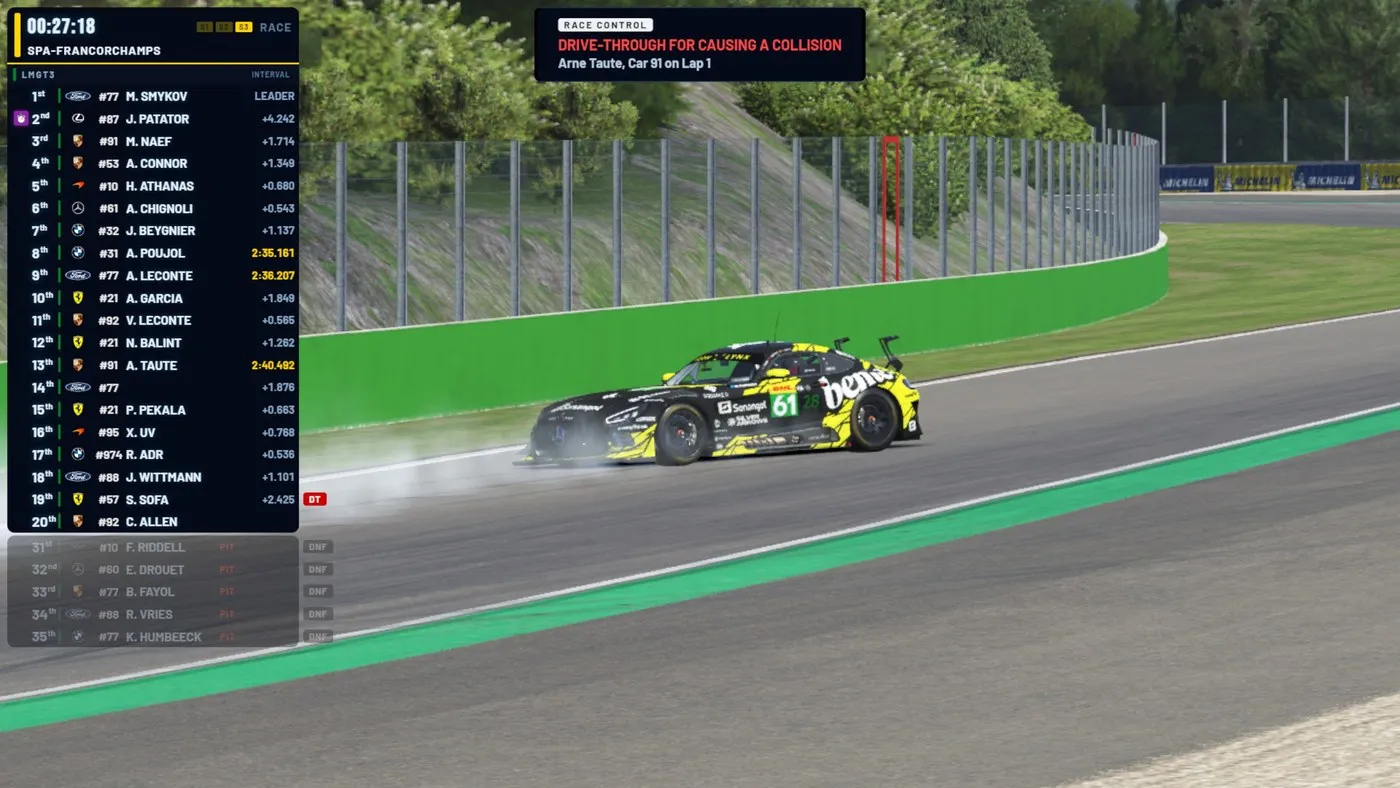
Penalties by hand
Add penalty rules against any car in the field for something the app can't see, such as a chat or driving standards report, during or after the race. It goes straight to Decided, listed in the report as an additional penalty. If it says "No cars in the field yet", the room started before the entries loaded: wait for the next session, or stop and start the feed.
Reports
Export PDF opens a printable report; Export CSV downloads the same record. Both cover every session of the event, for stewards as well as the Race Director, and work after the event is closed. Anything undecided shows as Pending, so export at the end. The PDF adds a stewarding summary for each entry.
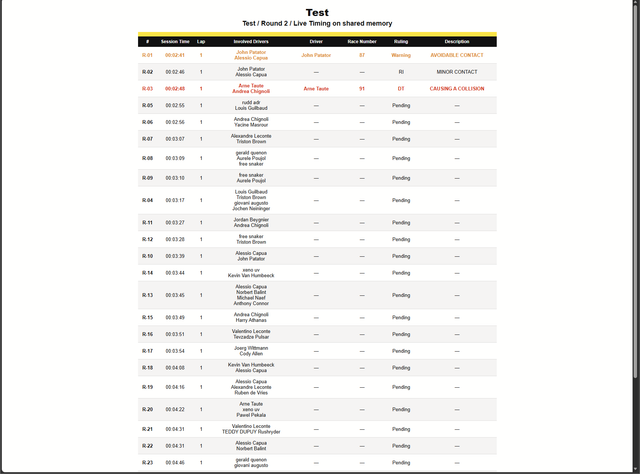
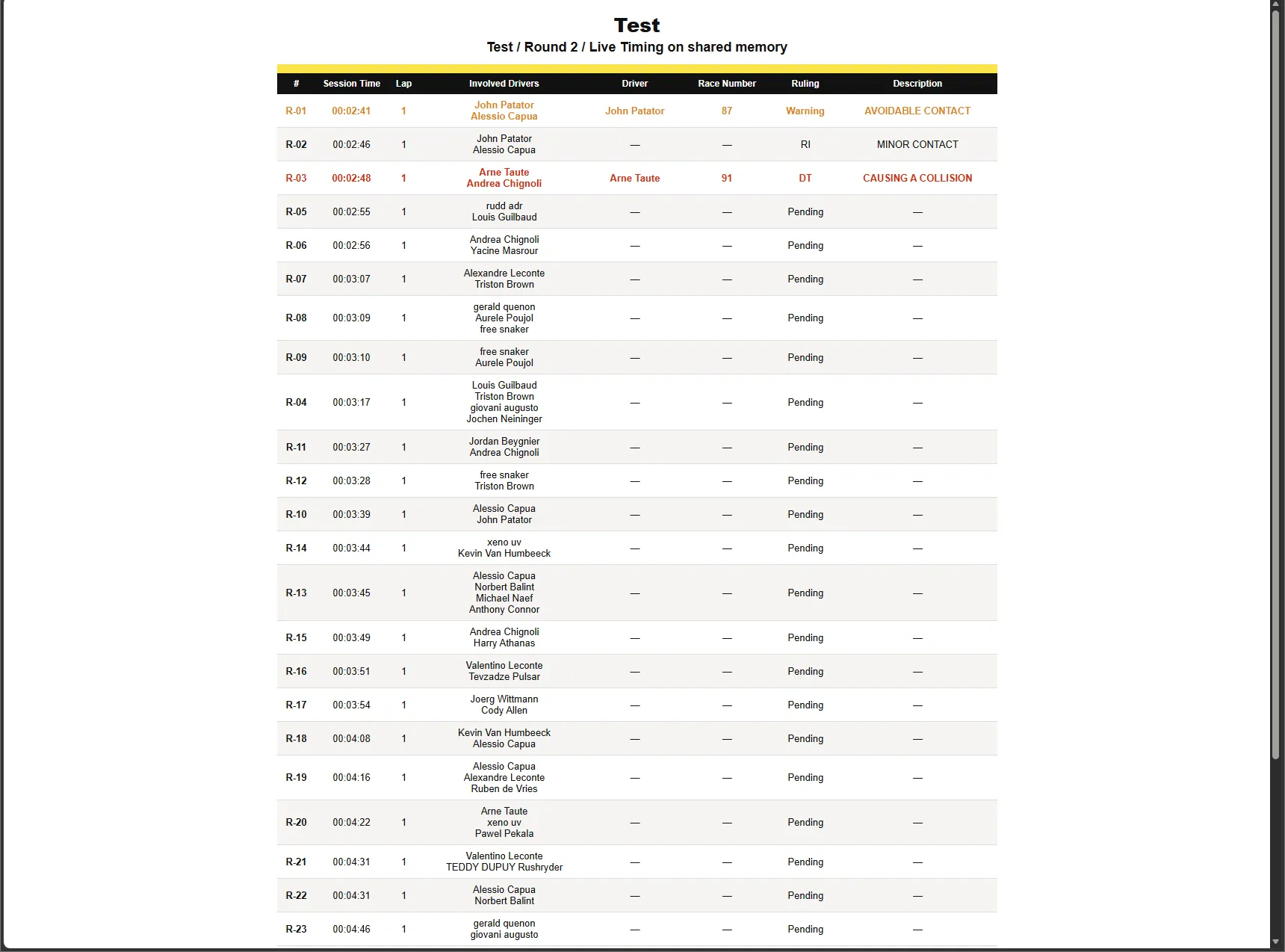
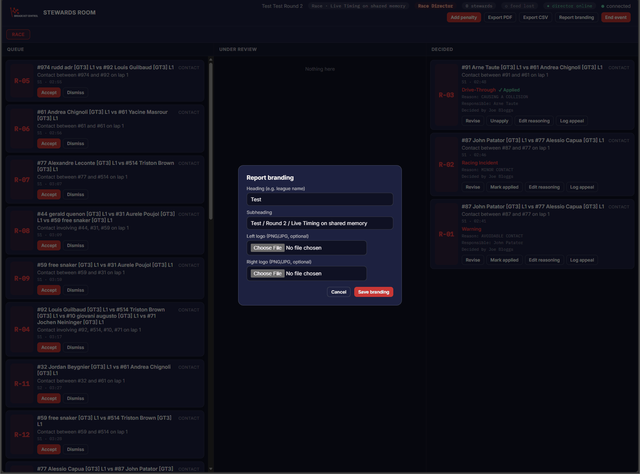
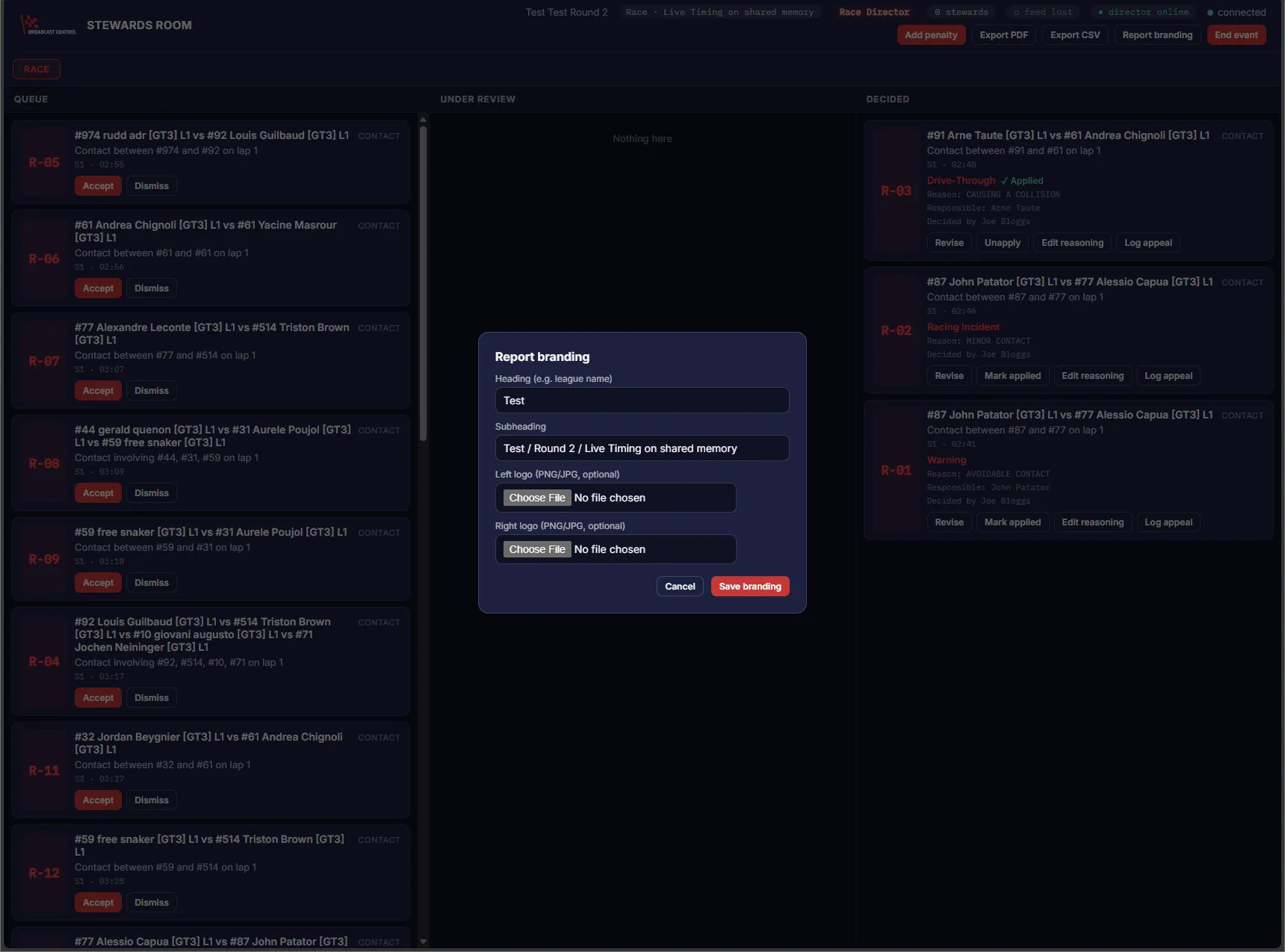
Report branding sets the heading, the subheading and a logo either side. Leave a box empty and it follows the event.
Ending the event
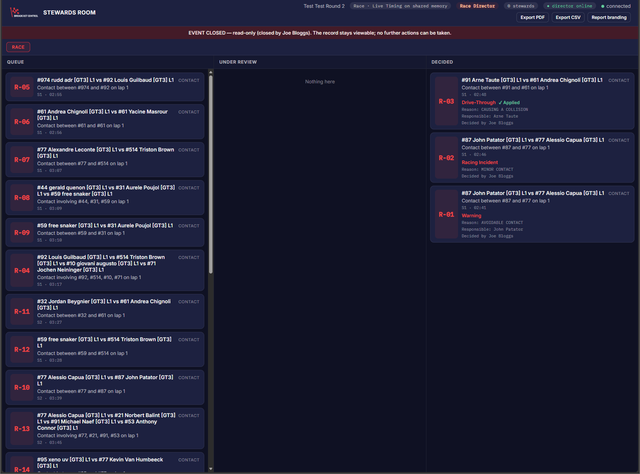
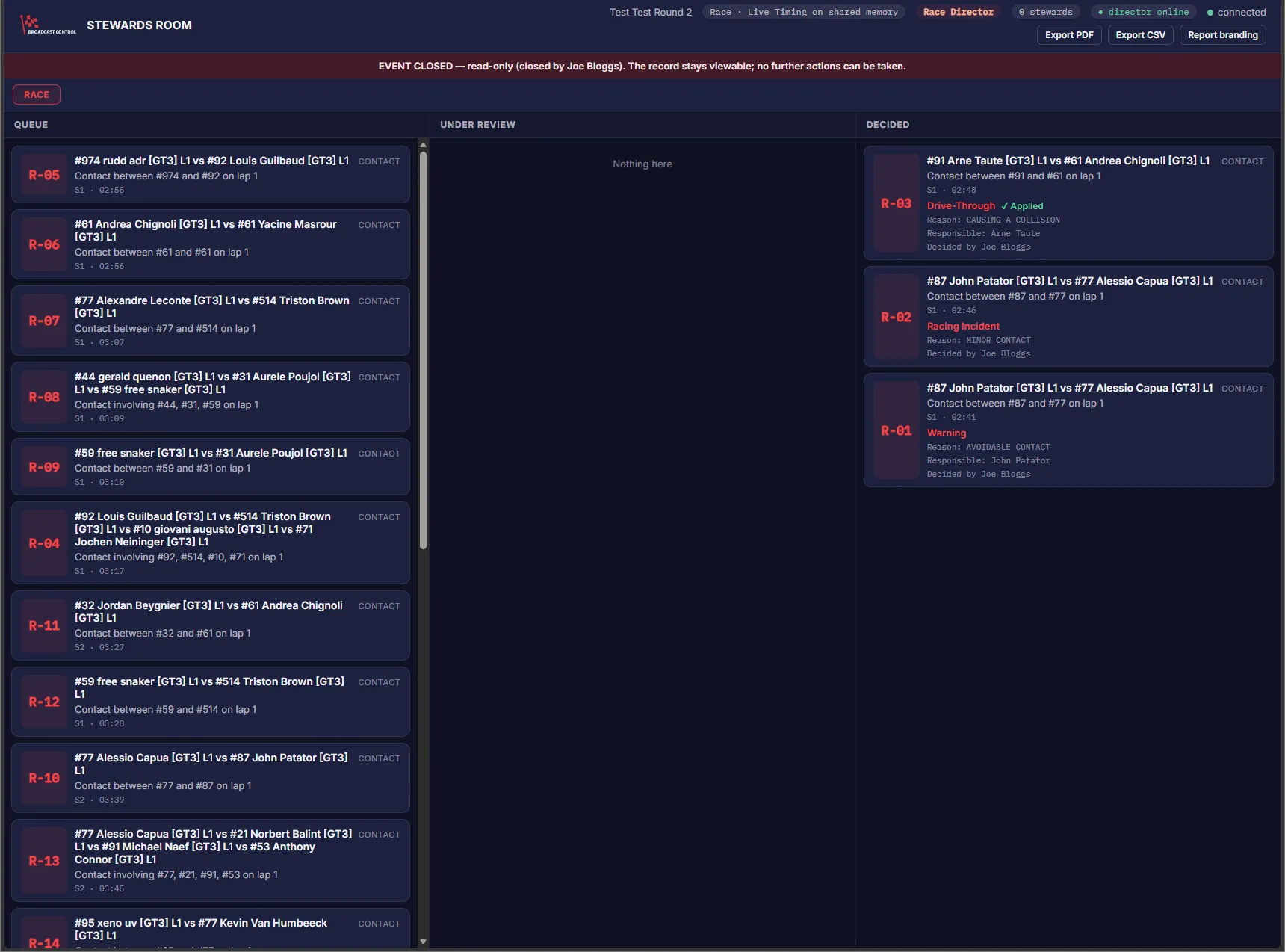
End event closes the room after asking. Everyone keeps their links and can still read every incident and ruling, export the reports and change the branding. Nothing is deleted.
From your account (Race Control) you can re-issue links, close a room or delete it; only delete removes the record, and it can't be undone. A room also closes by itself after 30 days, if the subscription ends, or when you start a new event on the same licence. A closed room is kept for 90 days, so export anything you want to keep.